
Dancing the Duet
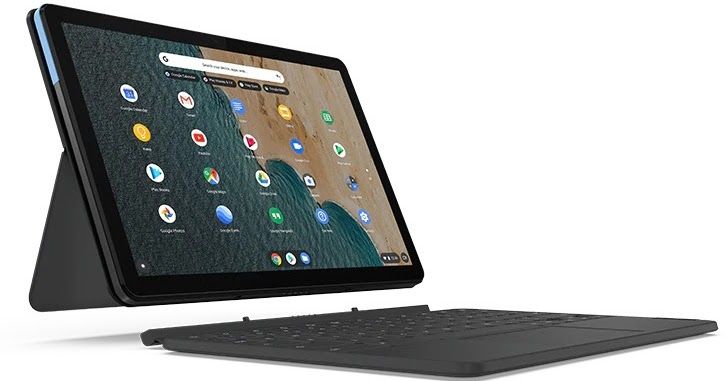
When my Acer C740 passed on earlier this week, I decided that I needed a replacement device. The Acer C740 had endured for five years, and had reached end of life some time ago. After reading a few reviews, I decided to invest in a Lenovo Chromebook Duet.
Why Not a High-End Chromebook?
Well, first of all, who has that kind of cash laying around? Not me. That pretty much ended my deliberations, but I have to admit that a high-end Chromebook might have been nice. But not nice enough to spend $800-$1000. Now, if Chromebook would let me run the Hemingway Editor app, use OBS, Shotcut (or actually had a decent web-based video editor), then maybe. But probably not.
Chromebook Duet?
Instead, the Lenovo Chromebook Duet made the affordability cut. As nice as a full-blown laptop may be, it’s nice to have something light to carry around. The Duet, a Chromebook tablet, appeared to fit the bill. After putting it through its paces for a few hours, it will do just fine. What I like most about it? It works like a Chromebook, can run Android apps that work just as well as on a dedicated Android tablet (like Samsung).
The tablet has a 10.1-inch display that can be used with the accompanying full-sized QWERTY keyboard to transform it into a fully functioning laptop that’s ready to provide enhanced productivity.
The unit is powered by a MediaTek Helio P60T octa-core processor that’s supported by 4GB of RAM, while also featuring 121GB of internal storage.
(Source: Adapted from GrendZ’s description to match mine)
What’s more, it didn’t take too long to get all my favorite content loaded up on it. With ample storage (120+ gigs), 4 gigs of RAM, it’s snappy enough and able to handle a load of video/audio files. As expected the keyboard is small but not too difficult to get around. I was typing full speed in no time, and getting at the special keys was easy with practice. In a conference setting, where you might be typing on your lap, I can see a clipboard or large children’s hardback book may come in handy. Or, you could set it on top of your laptop bag to make an impromptu lap desk.
I was blown away by the video quality. I started up a Zoom and loved the level of detail. I’m still running the ZoomPWA…background replaced except for a circle where my face appears. I wish Zoom had a blur background or something available, but not quite.
My real concern is, how will it work via HDMI? I hooked it up to an old monitor I had (like 20 years old), and it worked just fine. I’m hoping the quality of the image will improve when hooked up to a modern projector. I’ll have to test that later.
Some of my Must-Have Apps
Android
- ALZip: I needed an easy to use 7zip (handles other compression formats, too), and this was the best one I found. If you know of a better one, let me know! What’s nice about this one is how you can open encrypted 7z archives, which I have a few. This makes it easy when interacting with USB storage devices with confidential data I have stored on them.
- Audible: Must have audiobook app. Of course, Kindle app is also included just in case.
- GitLab’s Audio Recorder: Great for recording meetings, presentations, or audionotes.
- Bitwarden: All around password keeper. What’s neat is that the Android app works to safeguard all my passwords on the Android side. For the Chrome browser, I use the Bitwarden Chrome extension.
- Cx File Explorer: I needed a file manager that was a bit more robust than “Files,” which is what comes standard on any Chromebook. Cx File Explorer does quite a bit without ads.
- DuckDuckGo: A secure browser, which is ironic on a Chromebook. I also keep Brave browser Android app installed since it provides easy access to all my bookmarks.
- Fast Scanner Pro: With a built-in outward facing camera, scanning has never been so easy. FastScanner saves scans in image or PDF format to your cloud provider of choice (e.g. Drive/Dropbox).
- Private Internet Access: Who doesn’t need a Virtual Private Network (VPN) when on the go? This will do the job.
- Readdle Spark: A fantastic email program, it makes it a cinch to move emails from one account to another (something Gmail app can’t quite do).
- SSE - Secure Space Encryptor: A file/folder encryption tool. This app makes it so easy to encrypt content, and since it works on Window, Mac, and GNU/Linux, you can send the encrypted file/folder (*.enc) to any of them. I use it as an even more (prob unnecessary) alternative to 7zip encrypted archives.
- Xodo PDF Viewer/Editor: The multi-purpose tool. It works like an Android app, but you can also access it on the web, so truly powerful. One of my favorite PDF tools and I encourage you to try it out.
And those are the Android apps I use on a regular basis. There are a few others but not worth mentioning since they are “use ‘em every once in a blue moon.” Those include media apps, such Netflix type apps.
Wait, Do You Use Windows or Mac?
While I no longer have access to a Mac these days, I do rely on Windows. The more varied the platforms I have access to, the more I learn about working on each. I’m not sure platform is as important as it once was, though.
Everything posted on Miguel Guhlin’s blogs/wikis are his personal opinion and do not necessarily represent the views of his employer(s) or its clients. Read Full Disclosure