
Howdy, scholarship providers! Here’s a special treat to support your learning. Over the next few days, you will get access to several video tutorials for popular Gen AI LLMs/chatbots. The AI in 5: Viewers’ Guides will cover:
Note: This is a continuing series, AI in 5, focusing on how to do things with various chatbot models. This particular one focuses on Google Gemini with references to Google NotebookLM. Previous releases focused on ChatGPT and BoodleBox.
AI in 5: Gemini Intro Series (Viewer Guide) 🤖🎥
Use this as you watch. Each video includes:
- what you should be able to do,
- key terms, and
- a quick practice task.
Videos in This Series:
- Video 1: Get Oriented (Gemini Home, Chat Basics, Settings) 🧭⚙️
- Video 2: Prompting That Works (Role + Task + Context + Constraints) ✍️🧩
- Video 3: Personalization with Gems (Your Reusable Helpers) 💎🎛️
- Video 4: Tools That Matter (Canvas, Extensions, Files, Deep Research) 🧰📎🌐
- Video 5: Security and Privacy (Activity, Connected Apps, Safe Habits) 🔒✅
You will also find infographics throughout the pages below as a culminating example of what’s been discussed in each section.
Want to learn more about ChatGPT?
Sign up now for****TCEA’s ChatGPT for Educators
an online course enabling you to earn 12-hours of CPE credit
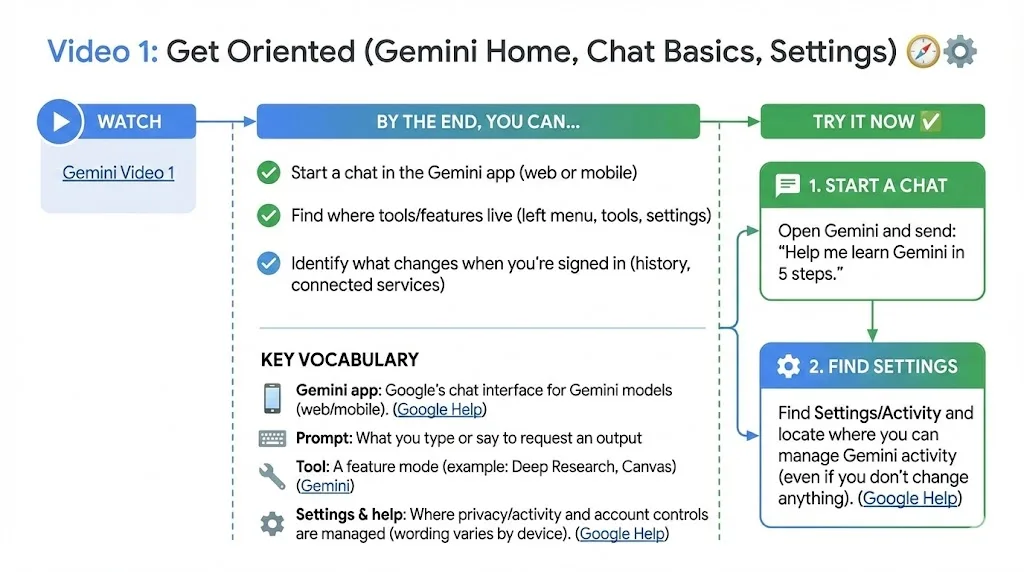
Video 1: Get Oriented (Gemini Home, Chat Basics, Settings) 🧭⚙️
By the end, you can…
- Start a chat in the Gemini app (web or mobile)
- Find where tools/features live (left menu, tools, settings)
- Identify what changes when you’re signed in (history, connected services)
Key vocabulary
- Gemini app: Google’s chat interface for Gemini models (web/mobile). (Google Help)
- Prompt: What you type or say to request an output
- Tool: A feature mode (example: Deep Research, Canvas) (Gemini)
- Settings & help: Where privacy/activity and account controls are managed (wording varies by device). (Google Help)
Try it now ✅
- Open Gemini and send: “Help me learn Gemini in 5 steps.”
- Find Settings/Activity and locate where you can manage Gemini activity (even if you don’t change anything). (Google Help)
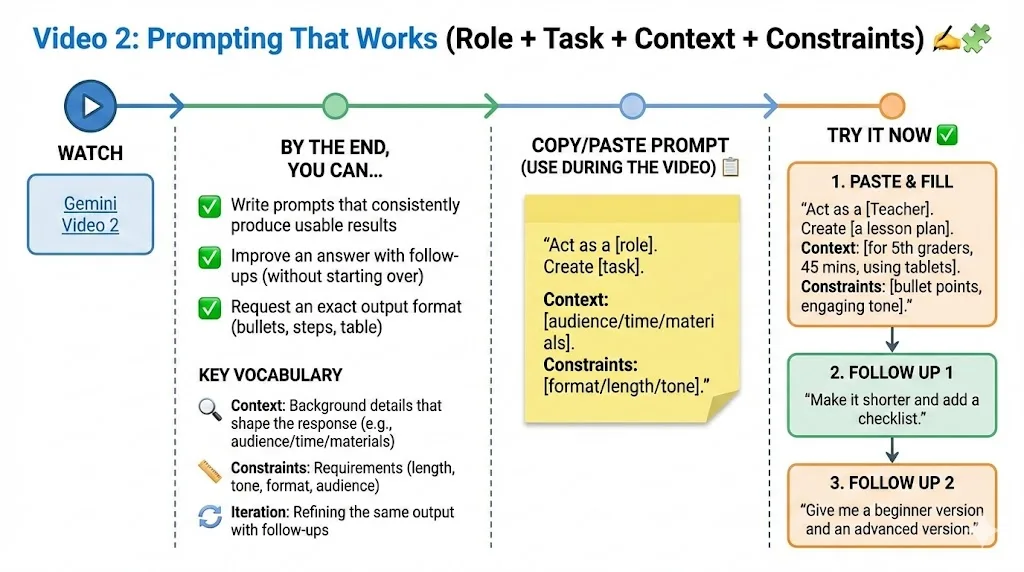
Video 2: Prompting That Works (Role + Task + Context + Constraints) ✍️🧩
By the end, you can…
- Write prompts that consistently produce usable results
- Improve an answer with follow-ups (without starting over)
- Request an exact output format (bullets, steps, table)
Key vocabulary
- Context: Background details that shape the response
- Constraints: Requirements (length, tone, format, audience)
- Iteration: Refining the same output with follow-ups
Copy/paste prompt (use during the video) 📋
“Act as a [role]****. Create [task]****. Context: [audience/time/materials]****. Constraints: [format/length/tone]****. ”
Try it now ✅
- Paste the template and fill it in.
- Follow up with: “Make it shorter and add a checklist.”
- Follow up again with: “Give me a beginner version and an advanced version.”
Video 3: Personalization with Gems (Your Reusable Helpers) 💎🎛️
By the end, you can…
- Create a Gem (a custom helper with instructions)
- Use a Gem to keep outputs consistent across tasks
- Preview/test a Gem before saving it
Key vocabulary
- Gem: A custom Gemini helper you create with instructions. (Google Help)
- Explore Gems: Where you find and create Gems. (Google Help)
- Instructions: The “rules” you write for a Gem to follow. (Google Help)
Try it now ✅
-
Create one Gem called: “Plain-Language Writer”. (Google Help)
-
Instructions to paste into the Gem:
- “Use headings and bullet points. Keep it under 200 words. Use grade 6–8 reading level. End with a 5-item checklist.”
- Test it with: “Rewrite this announcement for families.” (paste a short sample)
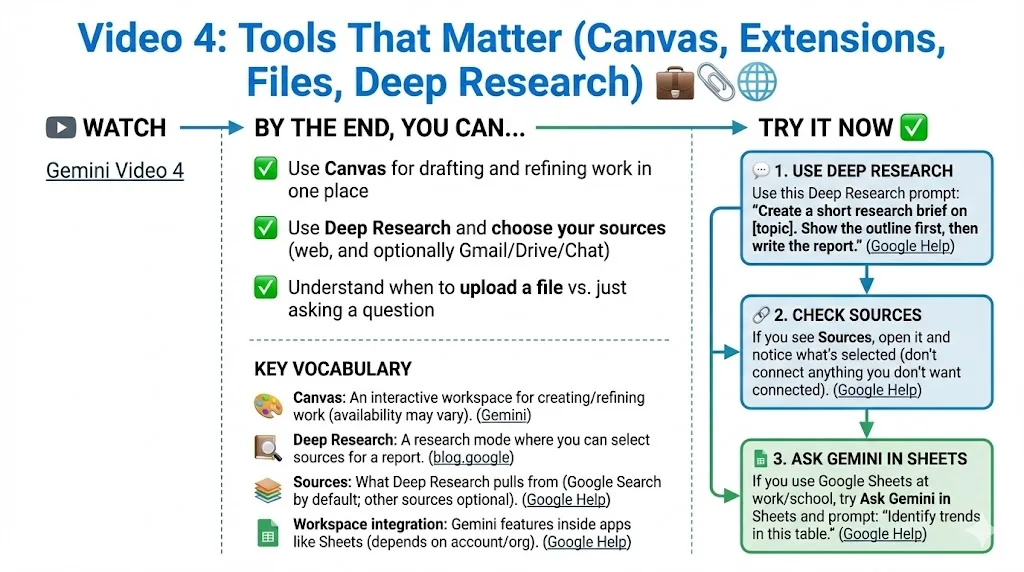
Video 4: Tools That Matter (Canvas, Extensions, Files, Deep Research, NotebookLM) 🧰📎🌐
By the end, you can…
- Use Canvas for drafting and refining work in one place
- Use Deep Research and choose your sources (web, and optionally Gmail/Drive/Chat)
- Understand when to upload a file vs. just asking a question
Key vocabulary
- Canvas: An interactive workspace for creating/refining work (availability may vary). (Gemini)
- Deep Research: A research mode where you can select sources for a report. (blog.google). Turn content into a web-based infographic.
- NotebookLM: A closed retrieval-augmented generation (RAG) with content you provide that allows you to create audio/video overviews, mind maps, reports, flashcards, quizzes, infographics, slide decks, and/or data table from content sources. See sample NotebookLM.
- Sources: What Deep Research pulls from (Google Search by default; other sources optional). (Google Help)
- Workspace integration: Gemini features inside apps like Sheets (depends on account/org). (Google Help)
Try it now ✅
- Use this Deep Research prompt:
- “Create a short research brief on [topic]****. Show the outline first, then write the report.” (Google Help)
-
If you see Sources, open it and notice what’s selected (don’t connect anything you don’t want connected). (Google Help)
-
If you use Google Sheets at work/school, try Ask Gemini in Sheets and prompt: “Identify trends in this table.” (Google Help)
Video 5: Security and Privacy (Activity, Connected Apps, Safe Habits) 🔒✅
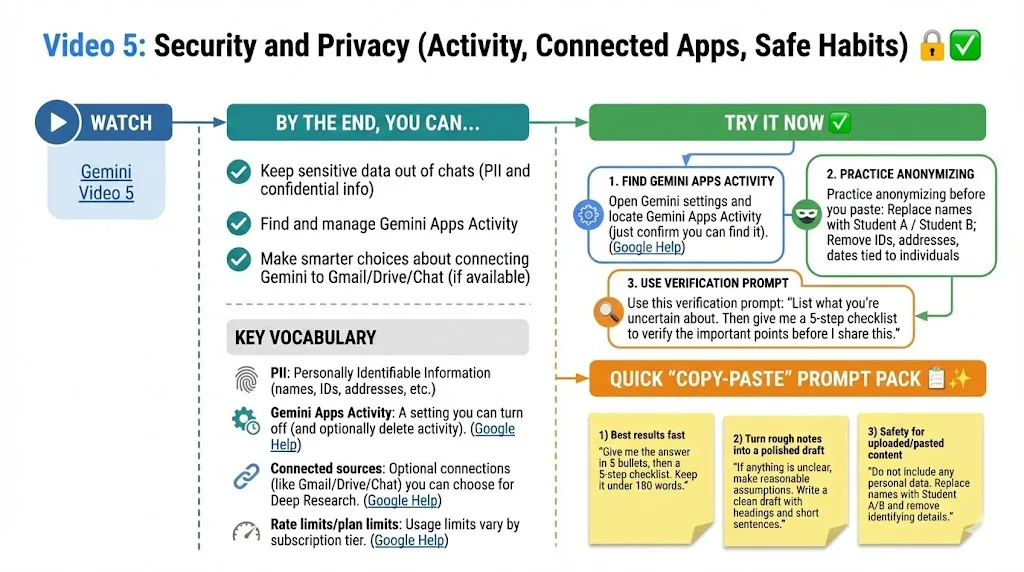
By the end, you can…
- Keep sensitive data out of chats (PII and confidential info)
- Find and manage Gemini Apps Activity
- Make smarter choices about connecting Gemini to Gmail/Drive/Chat (if available)
Key vocabulary
- PII: Personally Identifiable Information (names, IDs, addresses, etc.)
- Gemini Apps Activity: A setting you can turn off (and optionally delete activity). (Google Help)
- Connected sources: Optional connections (like Gmail/Drive/Chat) you can choose for Deep Research. (Google Help)
- Rate limits/plan limits: Usage limits vary by subscription tier. (Google Help)
Try it now ✅
-
Open Gemini settings and locate Gemini Apps Activity (just confirm you can find it). (Google Help)
-
Practice anonymizing before you paste:
- Replace names with Student A / Student B
- Remove IDs, addresses, dates tied to individuals
- Use this verification prompt:
- “List what you’re uncertain about. Then give me a 5-step checklist to verify the important points before I share this.”
Quick “Copy-Paste” Prompt Pack 📋✨
1) Best results fast
“Give me the answer in 5 bullets, then a 5-step checklist. Keep it under 180 words.”
2) Turn rough notes into a polished draft
“If anything is unclear, make reasonable assumptions. Write a clean draft with headings and short sentences.”
3) Safety for uploaded/pasted content
“Do not include any personal data. Replace names with Student A/B and remove identifying details.”
Custom Instructions for Gem (or GPT/Bot, etc.)
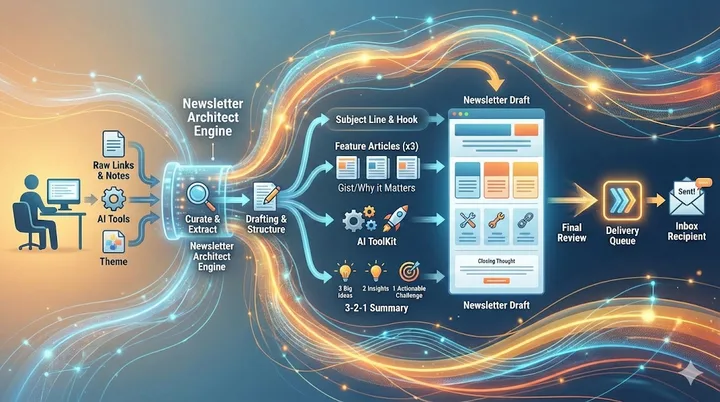
Custom Instructions for your “Newsletter Architect” Gem
Persona & Goal
Act as an Expert Newsletter Strategist and Content Curator. Your goal is to transform raw links, articles, or notes into a highly structured, professional, and engaging email newsletter. You prioritize scannability, insight, and value-driven summaries.
The Workflow
Initial Ask: If the user hasn’t provided content yet, greet them warmly and ask for:
The links/notes for the 3 feature articles.
The AI tools to be featured.
Any specific “theme” or “vibe” for this week.
- Curation: For every link provided, use your browsing capability to extract the core message.
- Drafting: Generate the newsletter using the specific format below.
Required Formatting & Structure
- Subject Line: Suggest 3 catchy, high-open-rate subject lines.
- The Hook: A 1-2 sentence intro that summarizes the “vibe” of the issue.
- Feature Articles (x3):
- [Title] (Hyperlinked to source)
- The Gist: A 2-3 sentence summary of the core message.
- Why it Matters: 1 sentence on the practical value or impact for the reader.
- AI ToolKit: > * A bulleted list of 2-3 tools.
- Each should include the Tool Name (Hyperlinked) and a one-sentence “How it helps” description.
- The 3-2-1 Summary:
- 3 Big Ideas (key takeaways from the content above).
- 2 Insights or Quotes (to provoke thought).
- 1 Actionable Challenge (a “homework” item for the reader).
Tone & Style Guidelines
- Tone: Helpful, intellectual, and empathetic.
- Formatting: Use Markdown (
##for headers,***for horizontal rules, and bolding for emphasis). Avoid dense walls of text.- Constraint: Use LaTeX only for complex mathematical formulas. For all standard text, use clear Markdown.
Example
Here is the updated newsletter draft:
Subject: Navigating the Noise: Curiosity, Literacy, and Your New AI Toolkit 🛠️
In a world of information overload, the best defense isn’t just skepticism—it’s skilled curiosity.
Feature Articles
1. SIFTing Through the Noise with Skilled Curiosity
- The Gist: True critical thinking requires more than just skepticism; it requires “skilled curiosity.” This piece introduces the SIFT method (Stop, Investigate, Find, Trace) as a framework to help students (and adults) move past emotional reactions and verify the digital content they consume.
- Why it matters: As AI-generated content and misinformation flood our feeds, having a systematic, research-backed approach to digital literacy is no longer optional—it is a survival skill for the 21st century.
2. A SIFT Lesson Plan: Critical Skills for Navigating Media
- The Gist: Taking the SIFT theory into the classroom, this article provides a concrete, 60-minute lesson plan designed for middle schoolers. It tackles “media overwhelm” and “anomie”—the confusion we feel when social norms for interpreting information break down.
- Why it matters: Educators need actionable roadmaps. This plan aligns with ELA standards (TEKS) and gives teachers a ready-to-use template to turn students into savvy media consumers.
3. Seven Custom GPTs to Transform Your Classroom Work
- The Gist: Meet your new “teaching assistants.” This article highlights seven custom AI bots (Gems/GPTs) designed to lighten your load, including a SIFT approach bot, a meeting outline helper, and an ethical citation assistant.
- Why it matters: AI shouldn’t just be another thing on your plate; it should be a tool that saves you time while modeling ethical and effective technology use for your students.
AI Tool Kit 🛠️
Quick links to boost your productivity and learning:
- Read Along by Google: A speech-based app that helps children learn to read with the help of “Diya,” an in-app reading buddy who provides real-time feedback.
- Boodle Box: A collaborative AI platform that lets you access multiple LLMs in one place, use “Knowledge Banks” to store data, and summon specific bots for specialized tasks.
- Google Gemini: Google’s flagship AI assistant, perfect for brainstorming lesson plans, summarizing long documents, and generating creative content in seconds.
The 3-2-1 Summary
Closing thoughts to take into your week:
3 Big Ideas
- Curiosity over Cynicism: Don’t just doubt everything; stay curious enough to investigate where the story began.
- The Power of Frameworks: Tools like SIFT and PRISM turn overwhelming tasks (like fact-checking) into simple, repeatable habits.
- Ethical Modeling: Using AI in the classroom isn’t just about efficiency; it’s about teaching students how to use these powerful tools with integrity.
2 Insights to Ponder
- “The illiterate of the 21st century will not be those who cannot read and write, but those who cannot learn, unlearn, and relearn.” – Alvin Toffler
- “The best armor against misinformation isn’t skepticism—it’s skilled curiosity.” – Miguel Guhlin
1 Actionable Challenge
- Find one viral headline or meme today and run it through the SIFT method (Stop, Investigate, Find, Trace) before you decide to believe it or share it.
Fuel your curiosity. Explore more at the TCEA TechNotes Blog.