
Every Thanksgiving break, I take a stab at backing up one of my external USB hard drives to another. It takes forever since the drives are huge and data is traveling over a USB connection. I’ve tried different solutions.

rclone on Zorin Core Linux in action (image excerpt)
Solution #1: FreeFileSync
This is a solution I have relied on and recommended to others. It works great on both Windows and GNU/Linux.
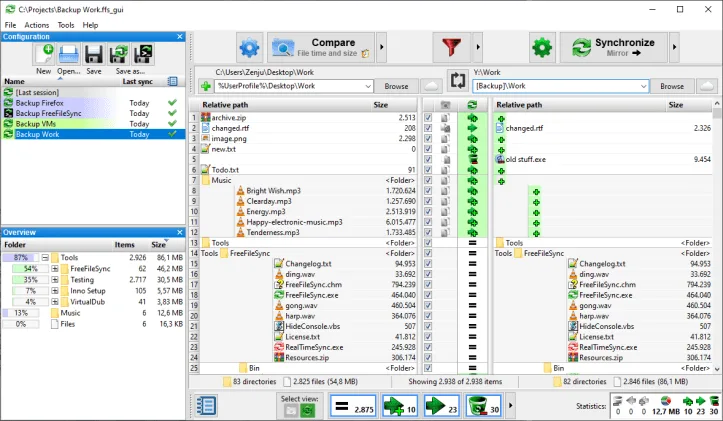
Image source: https://freefilesync.org/
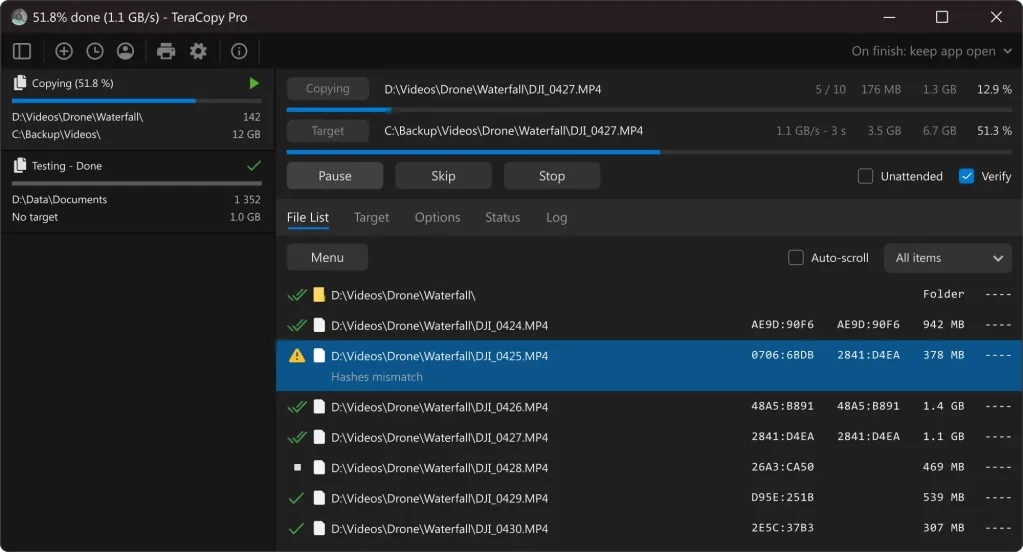
Solution #2: TeraCopy
Another solution I’ve relied on is TeraCopy. It is easy to use and works well. That said, it’s not my go-to solution every time for USB external drive duplication.
And, finally, I recently found out about rclone. I wanted a command line option on GNU/Linux, hoping that it might get things done faster. I don’t know about faster, but ChatGPT recommended rsync first, then when I pushed it, ChatGPT coughed up rclone.
Solution #3: Rclone
This is the solution that’s working as I type this blog entry. It’s been working for over a day to clone one USB drive to another. ChatGPT points out the following:
Feature / Factor
rclone
FreeFileSync
TeraCopy
Platform
Windows, Linux, macOS
Windows, Linux, macOS
Windows only
GUI or CLI
CLI (scripts/automation), optional browser GUI
Full GUI
GUI
Speed: Large Files
Very fast; saturates disk
Very fast
Very fast
Speed: Many Small Files
Fastest (parallel transfers)
Fast; faster than TeraCopy
Slowest
Directory Scanning Speed
Fast; tunable with --checkers
Fastest (multithreaded)
Slower
Incremental Sync
Best (smart sync)
Very good
Basic
Two-Way Sync
No (one-way, mirror, copy)
Yes (good for folder mirroring)
No
Integrity Checking
Strong (modtime, size, optional checksum)
Good
Minimal
Resume Support
Excellent
Good
Very good
Deletion Handling
Full sync/mirror options
Yes
Limited
Versioning
Yes (if used with backends)
Yes
No
Cloud Support
Extensive (70+ providers)
Partial
None
Scripting / Automation
Excellent
Weak
Weak
Real-time Sync
Via filesystem watchers
Built-in (RealTimeSync)
No
Best Use Case
Backups, automation, large datasets, mixed/complex jobs
Interactive folder sync, two-way sync, GUI workflows
Simple one-time file copies on Windows
Learning Curve
Medium
Low
Very low
Cost
Free
Free
Free
Speed Test
Scenario
Winner
Large files
Tie (all saturate USB/SSD speed)
Many small files
rclone, then FreeFileSync
Directory scan
FreeFileSync, then rclone
Repeated syncs
rclone
Simple drag-and-copy
TeraCopy
It went on to suggest:
Which tool should YOU use?
- If you want fast, repeatable sync of two USB drives, the best choice is:
rclone (with parallel flags)rclone sync /src/ /dst/ --transfers=16 --checkers=16 --progress - If you want a visual “compare folders” interface and occasional sync:
FreeFileSync - If you want simple, reliable copying on Windows with pause/resume:
TeraCopy
Operating System Compatibility
I spend most of my time on GNU/Linux and Windows 11 these days, and had no idea rclone worked (or existed) on both. The commands are fairly similar:
Linux version
rclone sync /media/mg/USBDriveSource/ /media/mg/USBDriveTarget/ —transfers=16 —checkers=16 —progress
Windows version
rclone sync “SOURCE1” “SOURCE2” —transfers=4 —checkers=4 —progress
rclone copy “SOURCE1” “SOURCE2” —progress —update —transfers=4 —checkers=4
(Replace E: and F: with the actual drive letters.)
I’m looking forward to trying it out on Windows. But for now, the job is still running strong on Zorin Core Linux.
BiSync on Windows
Here is the clean starting-from-scratch bisync command using SOURCE1 and SOURCE2.
Because bisync needs an initial state, the first run must always include —resync.
First-time initialization (required once per pair):
rclone bisync "SOURCE1" "SOURCE2" --resync --progress --transfers=4 --checkers=4This builds the bisync tracking files and establishes SOURCE1 and SOURCE2 as a synced pair.
All runs after the first initialization
rclone bisync "SOURCE1" "SOURCE2" --progress --transfers=4 --checkers=4If something breaks and bisync asks to recover
Use —resync again:
rclone bisync "SOURCE1" "SOURCE2" --resync --progressReminder
- Bisync is two-way: changes and deletions flow both directions.
- If your intent is one-way without deletions, bisync is the wrong tool—use copy.