
Not a day goes by that I don’t wonder, “How much am I REALLY paying for subscription services?” It’s crazy how these costs add up so quickly. Jon Henshaw shares a free, open source tool that might work better than a spreadsheet.
SubGrid is a free, open-source tool that visualizes subscription costs to help manage monthly budget decisions more effectively.
You can give it a try via the browser…
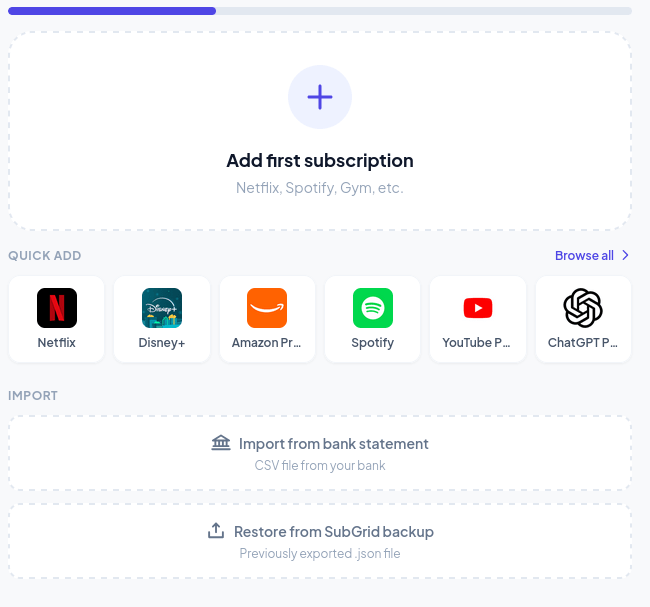
…or d**ownload it and run on your machine** in case you want to keep the information confidential. You can read the details in Henshaw’s article.
Running It Locally
Since it would be worrisome to not run it locally, I followed these ChatGPT generated instructions to run this locally on Zorin Core Linux installation (Windows 11 instructions appear at the end of this blog entry):
1) Install Python 3 (Zorin is Ubuntu-based)
sudo apt update sudo apt install -y python3 python3 —version
2) Download the project
sudo apt install -y git git clone https://github.com/hoangvu12/subgrid.git cd subgrid
(Repo structure is static files like index.html, styles.css, js/.) GitHub
3) Run the local server
python3 -m http.server 8000
4) Open it in your browser
Go to:
http://localhost:8000
How It Worked
As you might guess, this was a flawless installation.
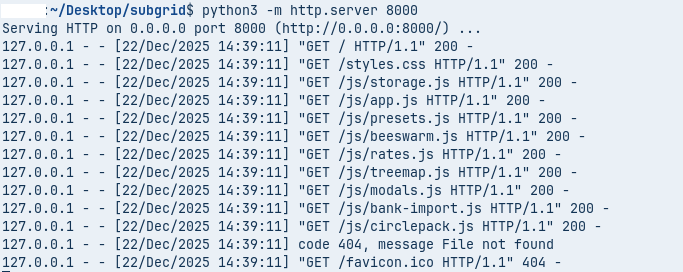
Yikes!
Wow, I hadn’t realized I was spending that much on Gen AI tools. I’m actually spending more on AI than I am on separate media services, which is a good thing, but sheesh.

Er, sorry. I blurred the image. It’s kinda embarrassing. Off to cancel some services.
Windows 11 Instructions
Below is the clean, reliable way to run subgrid on Windows 11 using Python as a local web server.
1. Install Python 3 (once)
- Go to https://www.python.org/downloads/windows/
- Download Python 3.x (64-bit).
- Important: Check “Add Python to PATH” during install.
- Finish installation.
Verify:
python —version
or
py —version
If that works, Python is ready.
2. Install Git (once)
- Download Git for Windows:
https://git-scm.com/download/win - Accept defaults.
Verify:
git —version
3. Download the subgrid project
Open PowerShell and run:
cd %USERPROFILE%\Desktop git clone https://github.com/hoangvu12/subgrid.git cd subgrid
You should now see files like:
index.htmlstyles.cssjs/
4. Run the local web server (Python)
From inside the subgrid folder:
python -m http.server 8000
If python doesn’t work, try:
py -m http.server 8000
You should see:
Serving HTTP on :: port 8000
5. Open it in your browser
Open any browser and go to:
http://localhost:8000
subgrid should load immediately.
Common fixes
Port already in use
python -m http.server 8001
Then open:
http://localhost:8001
Python not recognized
- Re-run the Python installer
- Ensure “Add Python to PATH” is checked
- Restart PowerShell
Optional: One-click launcher (BAT file)
Create run-subgrid.bat inside the subgrid folder:
@echo off cd /d ”%~dp0” python -m http.server 8000 pause
Double-click → browser → done.
Key takeaway
- No Python packages needed
- No virtual environment
- Python is only acting as a static file server
If you want LAN access (other devices on your network) or a portable version on a USB drive, say so and I’ll give the exact commands.