
AI Chatbots have found their way into the hands of teachers and students around the globe. In classrooms, about half of U.S. teachers and K-12 students now use an AI chatbot like ChatGPT on a weekly basis. Only about twenty percent of students says they haven’t used AI. With widespread use of AI, many are continue to struggle with getting information in and out of chatbots. With that in mind, it’s worth revisiting file formats.
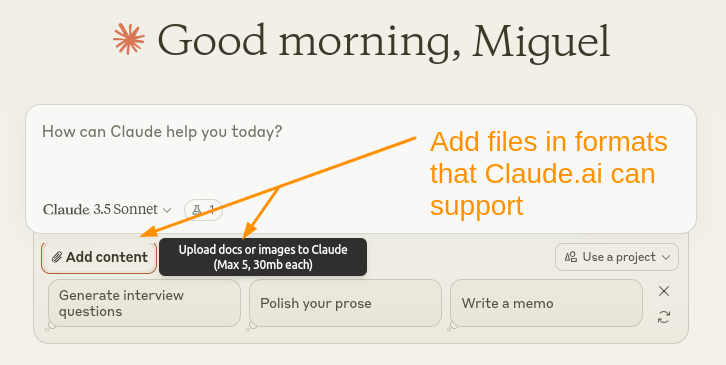
Screenshot by author of Claude.ai add files option
Wait, File Formats? What’s That?
File formats are standard ways that information is encoded. For example, webpages are encoded in a variety of formats such as hypertext markup language (HTML). Use Microsoft Docs or Excel? Then those file formats are DOCX and XLSx, respectively. At the dawn of the AI age, many are struggling with file formats. The reason why is different chatbots may not handle your favorite program’s file format.
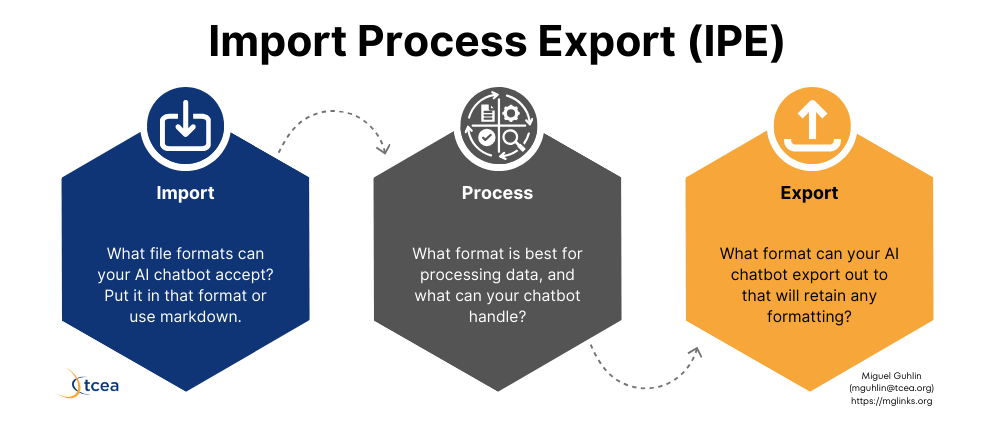
Design by author. View full-size.
This is an easy problem to overcome, you simply need to be aware of the file formats chatbots can take in (import) or pop out (export). The table below can provide some clarity for you in this regard.
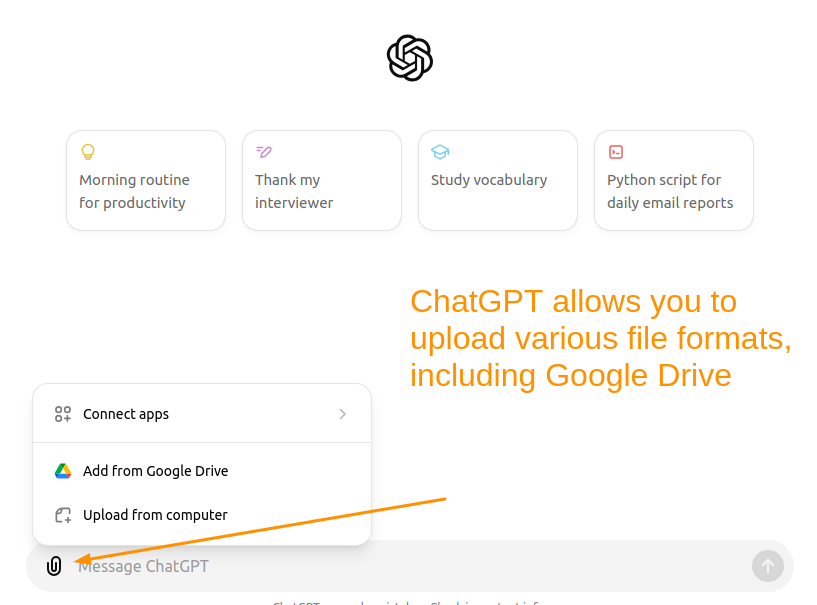
Screenshot by author of ChatGPT file attachment screen
Why Does It Matter?
In the table below, you can see popular chatbots. You will see whether they support text and markdown (all of them do except Meta and You.com). This means that if you know how to get files into markdown format, you can convert to other formats. Why does that matter?
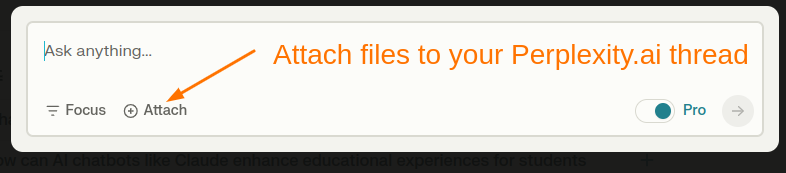
Perplexity.ai Attach Files screenshot by author
Consider that chatbots like Claude can import PDFs, DOCx, etc., but cannot export to those proprietary formats. That means you have a beautiful documents with tables and formatting (bold, italics, underline), section headers, and it’s reduced to simple text. How can you keep most of that formatting? Use markdown format. But paste that markdown into a word processor, and it won’t look great. You first need to convert it to a usable format.
Chatbot Comparison: Import and Export Formats
This table clarifies what formats work best for various popular chatbots. In addition to file formats, it also offers suggestions for a variety of web browser extensions. You will see more about browser extensions in a moment.
Chatbot
Text
Markdown
Proprietary Formats
Additional Export Formats
Browser Extensions
✓
✓
PDF, DOCX, XLSX, CSV, HTML, ODT, RTF, EPUB
JSON
Claude AI, Claude Export (browser script)
✓
✓
PDF, DOCX, XLSX
HTML, PNG, LaTeX, Code Snippets, JSON, ASCII art
✓
✓
PDF, DOCX, XLSX, Google Docs/Sheets/Slides
CSV, Export to Google Docs, Gmail drafts, Google Sheets (tables), Google Colab (Python code), Replit (various coding languages)
✓
–
PDF, JPG, JPEG, PNG, WEBP
GIF
N/A
✓
✓
DOCX, PPTX, XLSX
Export via solutions (managed/unmanaged)
✓
✓
–
Perplexity AI, Save my Chatbot
✓
–
–
–
There are various websites that can ease your transition. If you rely on markdown as a way to keep formatting, you can use the Free Markdown to HTML Converter. I keep a browser tab open to this conversion website. It’s free, and provides a markdown syntax cheatsheet. That cheatsheet can be helpful to those who may not be familiar with markdown.
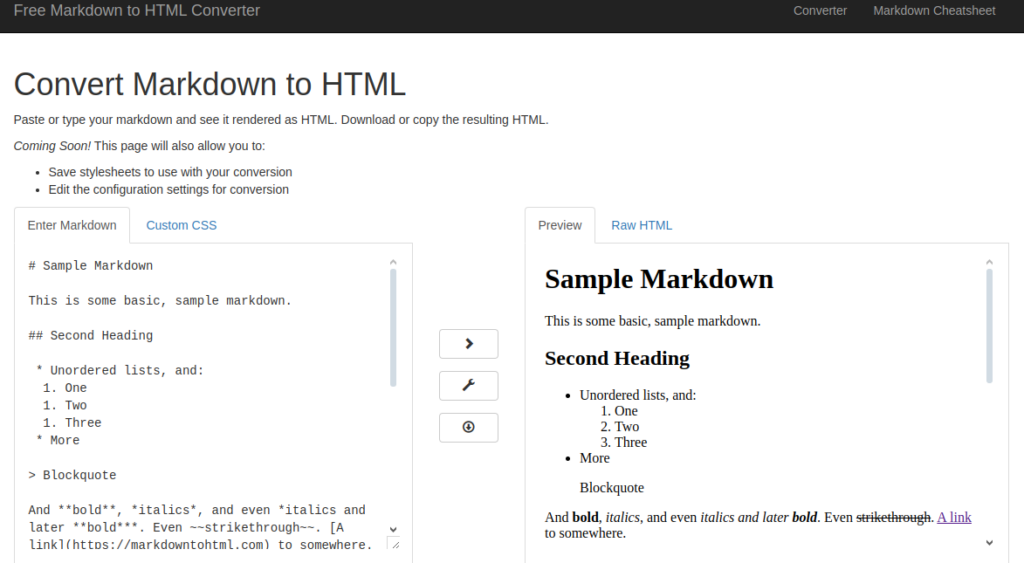
Screenshot by author of Convert Markdown to HTML website at https://markdowntohtml.com
Learning More About Markdown
If you want to learn more about markdown, take a few moments to study the Markdown Syntax Cheatsheet. Want more information? Learn more about markdown via the Markdown Tutorial website.
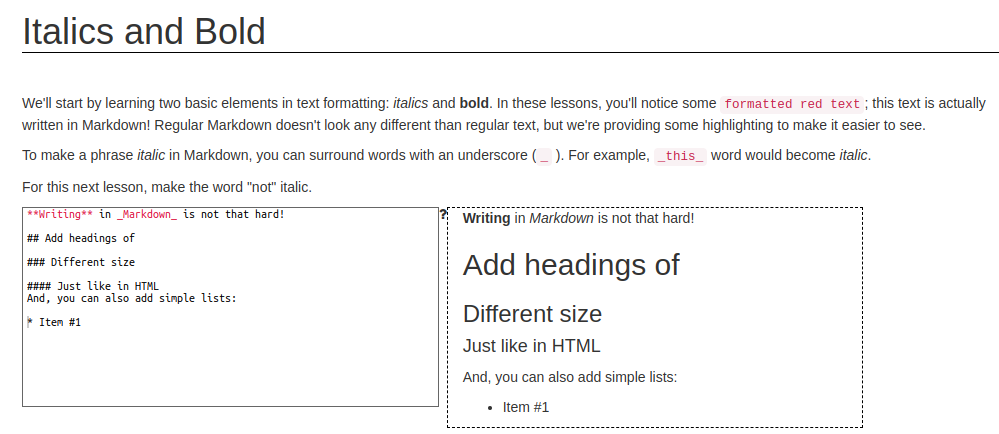
You can avoid learning all the intricacies of markdown through the use of browser extensions. Let’s take a look at a few that make your life easier.
Browser Extensions
Several great browser extensions appear below. They facilitate getting information in usable format into and out of formats chatbots and people can use. In time, these browser extensions may become unnnecessary. For now, though, they can ease some of the pain of transition between IMPORT->PROCESS->EXPORT steps. Allow me to share some of my favorite points about each.
Here are my top three picks for converters that I use daily:
Tool #1: Copy Selection as Markdown
On a website and want to grab a portion of the webpage with its format intact? Use one of these popular “copy selection as markdown” browser extensions. Once installed, you can highlight text on any website. Then, right-click it and choose “copy selection as markdown.” This will make a copy in your device’s clipboard. You can then paste that markdown text with its formatting intact into your AI chatbot of choice.
Here are a few great browser extensions for Chrome/Chromium browsers:
Using Firefox? You might find one of these options worthwhile.
What are some ways to use this?
- Copy text from a website when I want to analyze its veracity (fake news?)
- Grab selection to rework content I’ve written, or
- Select text as markdown with the intent of using AI to offers suggestions or feedback to colleagues.
Give it a try. It makes converting content from websites into markdown easy.
Tool #2: Convert Google Docs to Markdown
As an avid Google Docs user, I often have complex Google Docs with headings and formatted text. There are times I want to drop a formatted document. I could export it as a DOCx or RTF, but I often like to copy-n-paste from one document to another. Saving files to my device can get tedious. To avoid that, I convert Google Docs in my browser using a Google Doc extension.
There are several “convert Docs to markdown” extensions in the Google Marketplace. One that I have relied on consistently is Bean Road Communications’ Docs to Markdown.
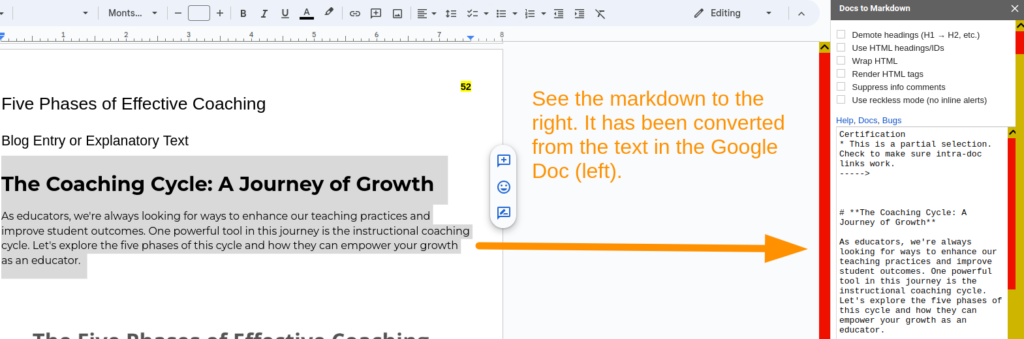
Screenshot by author
Tool #3: Convert WebP to JPG or PNG
Try to save a picture from ChatGPT, you will get a WebP formatted image. This can be a pain if you don’t have an image converter installed on your device. A workaround? Use one of the following browser conversion tools. You can right-click on an image, and save that WebP as a JPG or PNG image. That’s important because the JPG/PNG image formats are more widely accepted. At least, accepted by various programs that haven’t made the switch to WebP yet.
The first two browser extensions convert from WebP to PNG and JPG, respectively. The third converts from PNG/JPG to WebP.
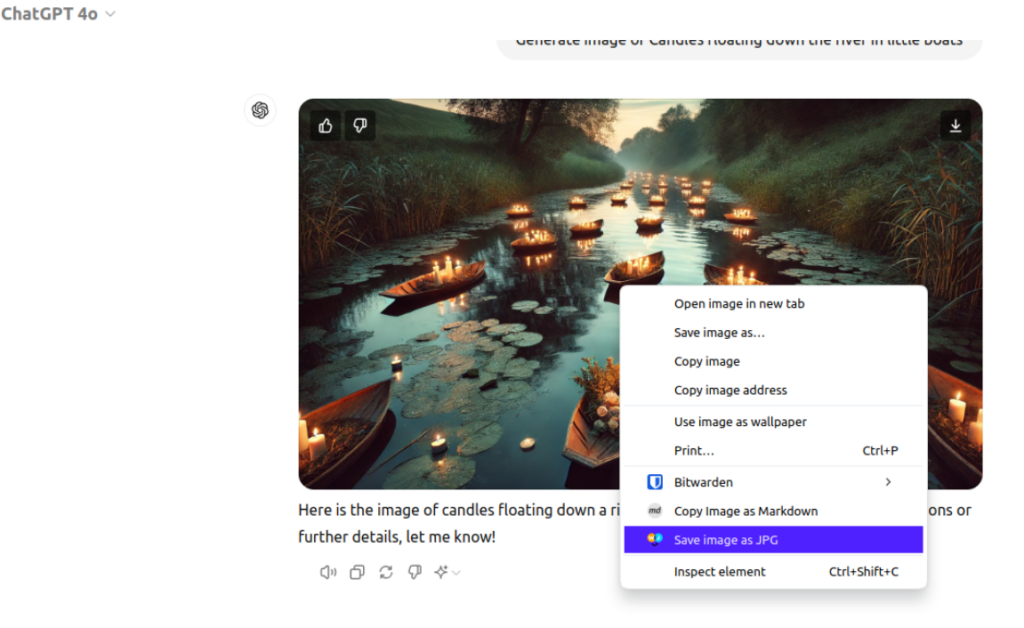
Screenshot by author of ChatGPT author-prompted image
AI Chatbot File Compatibility
Want to use AI chatbots well? You simply need to know two things. First, learn what file types each bot can read and make. This helps you get your work in and out. Second, use browser-based converters or add-ons to change file types fast. This keeps your text looking good. Do these two things and you’ll get more from AI bots. It works for school, work, or fun. Let me know what you use in the comments below.