In the two previous parts of this blog series, you saw how to make a custom GPT accessible to anyone, whether they have a ChatGPT account or not, as a website. In part one of the AI Magic Maker series, you created a custom GPT-based Fun, Personality Quiz. In part two, you saw how to turn a custom GPT into webpage for easy access via the web. In part three, you will learn how to collect the data entered via the web version of Fun Quiz into a Google Sheet.
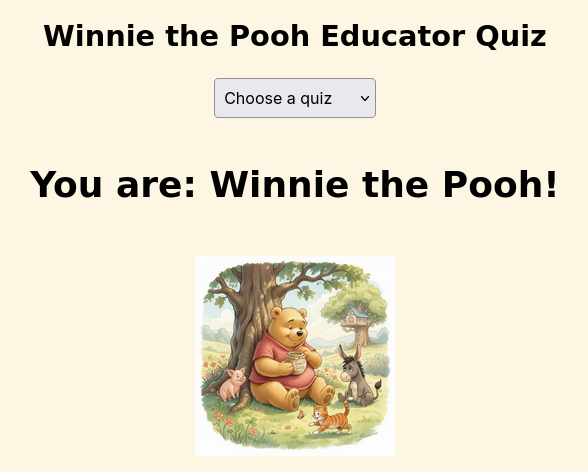
Want to take the Fun, Personality Quiz? Take the Quiz!
About This Series
In this part, we’ll explore how to save data from the interactive webpage to Google Sheets for later analysis. Saving the data from the interactive webpage to Google Sheets takes this interactive webpage to a whole new level since you can now create quizzes and more that save the data.

Wait, How Is This Possible?
The journey from custom GPT requiring individual user accounts to a webpage anyone can access is made possible through the use of free tools. Those tools include:
- A GitHub account. How to get a free account is explained in part two of the series.
- A Google Drive account with Google Sheets. You can use the free, or consumer, version of Google Sheets to do this. That means, you can use your free Google Sheets associated with your free personal account or Google Workspace for Education/NonProfit account.
- Google Apps Script Web App. This is such a game-changer and I suspect you may soon be making your own Web App scripts using Generative AI. It’s the “hidden” lesson in this series.
All these tools are free.
Achieving the Impossible
Using Gen AI (for part three, I asked my Claude Pro account for help), I asked for a step by step. Since I’m not a Google Apps script, failed BASIC programming in high school (I hope you appreciate how tough an admission like that would be for a high school student), I can attest to the power of vibe coding to help me achieve this hitherto impossible task. Yes, with Gen AI at your side, you can leap tall mountains of code.

The Plan
The plan is that you will create a Google Sheet and deploy a Google Apps Script as a Web App (takes approximately five minutes). Then, Gen AI will update script.js to POST (a specific action, so that’s why it’s capitalized) the result to the Web App URL.
The data logged per quiz submission will be:
- Timestamp
- Quiz name (e.g., “Smurfs”)
- Result character (e.g., “Papa Smurf”)
Step 1: Set up Google Sheets + Apps Script
These are the steps I will follow in the video. Find that video at the end of this blog post. In the meantime, follow these steps:
- Create a new Google Sheet
- Name the first sheet tab Results
- Add headers in row 1: Timestamp, Quiz, Character
- Go to Extensions → Apps Script
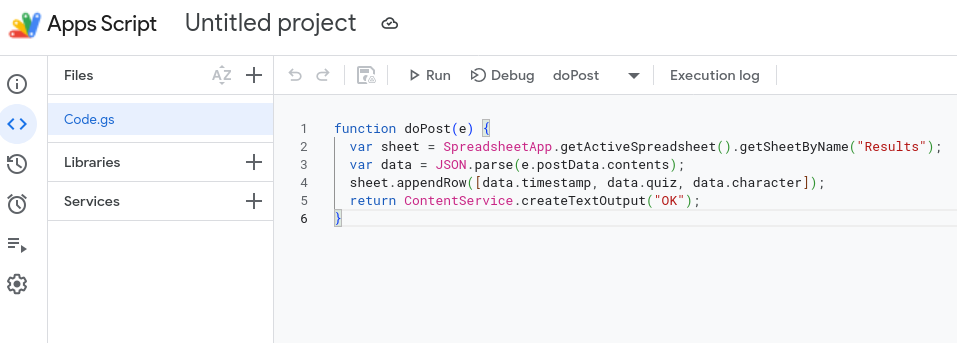
- Replace all code with this:
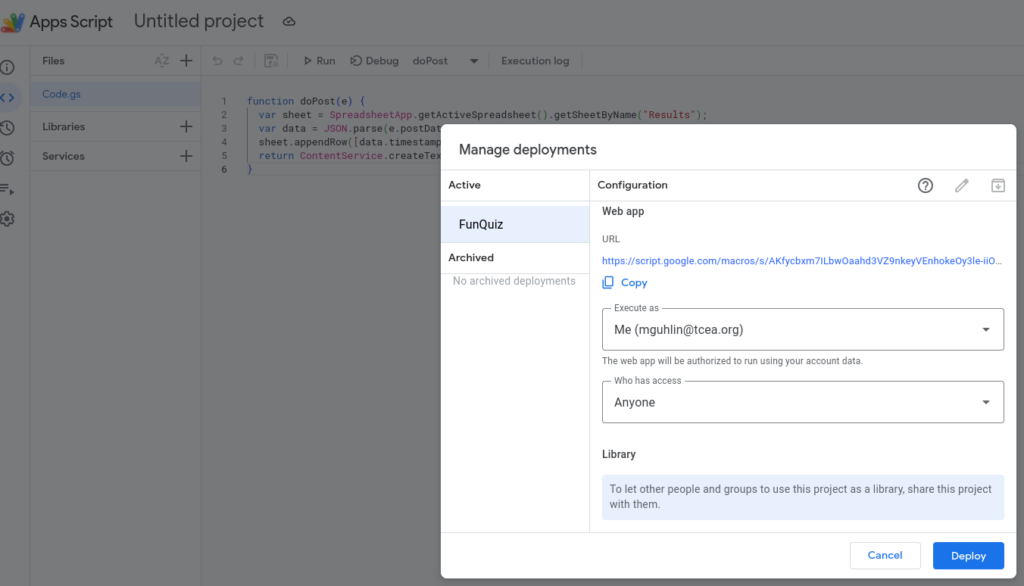
function doPost(e) { var sheet = SpreadsheetApp.getActiveSpreadsheet().getSheetByName("Results"); var data = JSON.parse(e.postData.contents); sheet.appendRow([data.timestamp, data.quiz, data.character]); return ContentService.createTextOutput("OK"); }
- Click Deploy → New deployment
- Type: Web app
- Execute as: Me
- Who has access: Anyone
- Copy the Web App URL. You will need it next.
Step 2 — Updated script.js
Now that you are ready with the Google Sheets Web App URL, you will need to add it to the script.js file at the top of the file. This will result in a row like:
This is the only file you need to replace. All four HTML files already load script.js, so nothing else changes. Once you have your Apps Script Web App URL, replace “YOUR_WEB_APP_URL_HERE” at the top of the file.
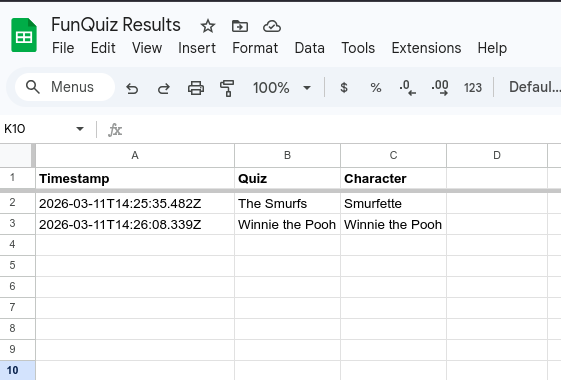
Each completed quiz will log a row like:
| Timestamp | Quiz | Character |
|---|---|---|
| 2026-03-11T14:32:00Z | The Smurfs | Papa Smurf |
That’s pretty much all there is to it. Not sure what to do?
Watch the Video
This video walkthrough will get you started. You are also going to get the download file (a compressed zip file) with all the webpages and the generic script.js so that you won’t be tempted to simply use mine.
In this video walkthrough, you get a tour of the process, from start to finish:
You can also download a copy of the entire FunQuiz website from GitHub using the link below:
Get the FunQuiz HTML/web files with both versions of the script.js file
Remember, if you decide to try this yourself, you will need to update the script.js file to point to YOUR Web App URL, rather than mine.
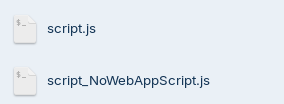
Since you have both versions of the file, you can compare them:
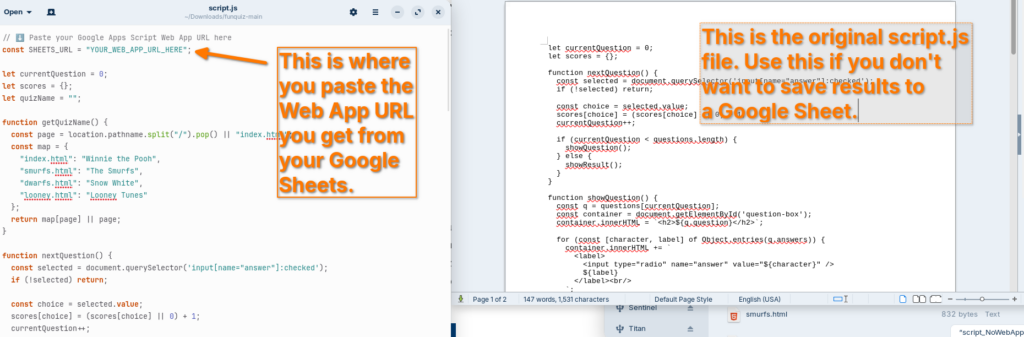
From left to right: Script.js file that saves results to Google Sheets, script_NoWebAppScript.js that simply runs the quiz and no results are saved. Make sure to rename the “script_NoWebAppScript.js” to “script.js” if that’s what you decide to use.
Wrapping Up
Vibe coding has become so easy, and with free hosting by GitHub or any web server you have access to, you should be able to create web/HTML pages with ease and share them. Here are some potential applications in school environments, even though it may drive technology directors crazy with the need to host teacher-generated HTML pages (but it’s super inexpensive, so why not on an intranet server or off a USB flash drive?).
Here are practical, high-impact ideas organized by who benefits most.
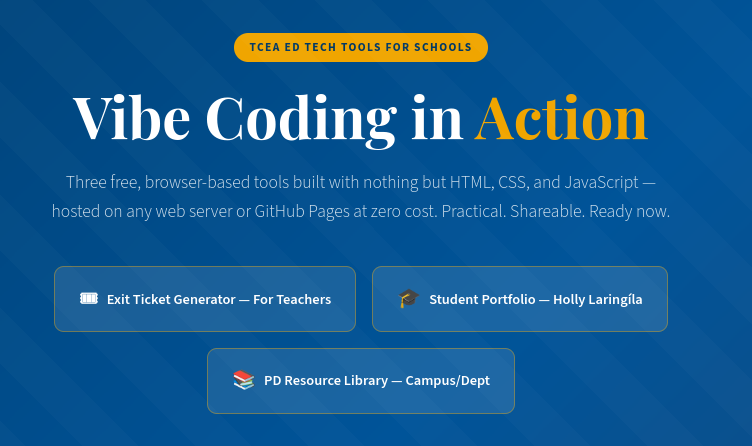
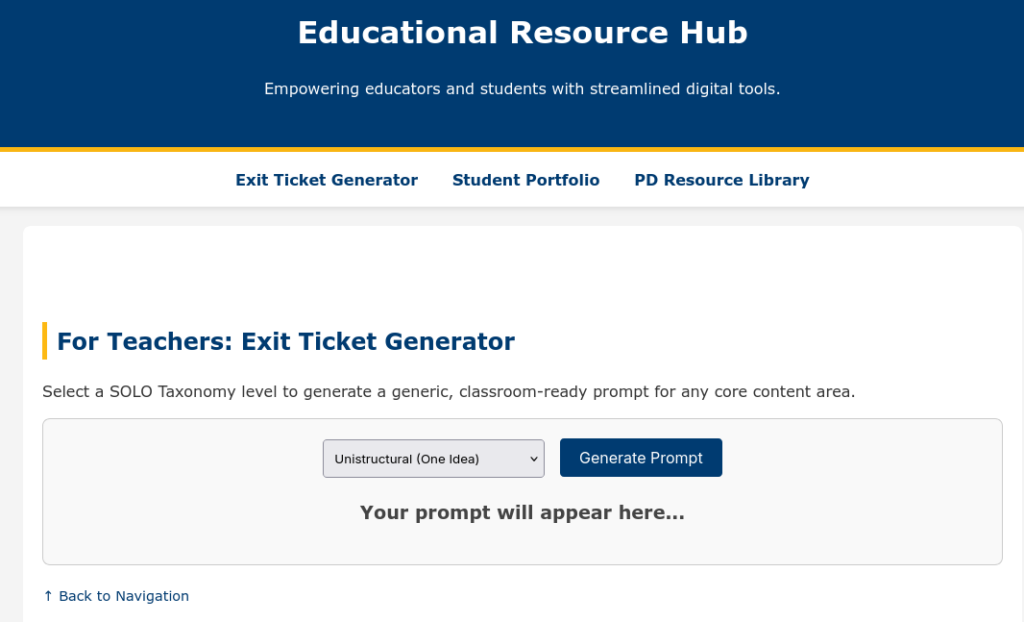
https://mguhlin.github.io/funquiz/examples.html
A simple, bare bones example of one of each of the following ideas is available. It took about thirty seconds to make, and that shows. I could have spent more time on it, but this example should give you an idea of what’s possible with minimal time investment.
🧑🏫 For Teachers
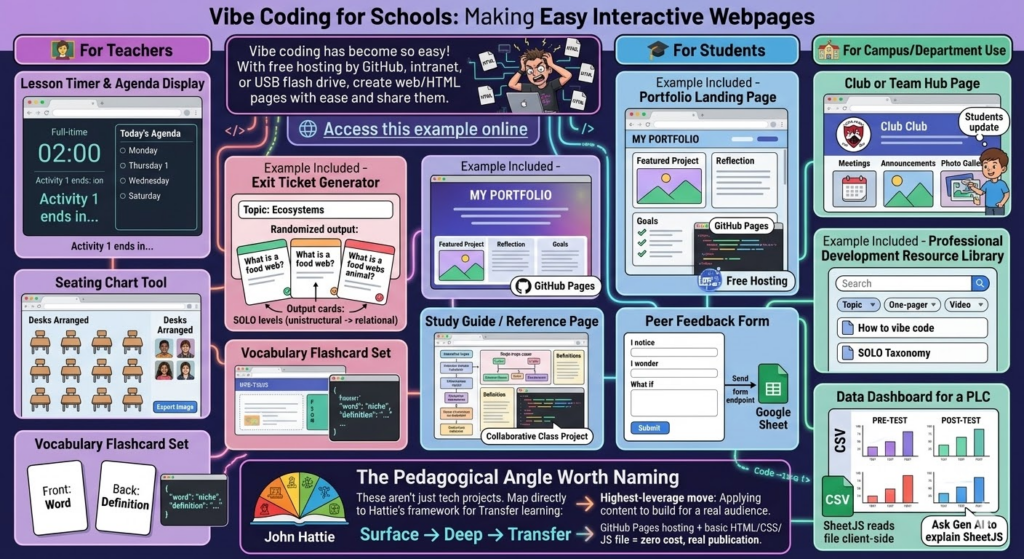
- Lesson Timer & Agenda Display. A full-screen HTML page showing the day’s agenda with a countdown timer per activity. No app needed…just a browser tab.
- Example Included – Exit Ticket Generator. Input a topic, get a randomized exit ticket question. Teachers could build a bank of prompts tied to SOLO levels (unistructural → relational questions).
- Seating Chart Tool. Drag-and-drop HTML interface for arranging desks. Exportable as an image. Far lighter than any app.
- Vocabulary Flashcard Set. A simple spaced-repetition card flipper built around a unit’s word list. Teacher edits one JSON file to update the deck.
🎓 For Students
- Example Included – Portfolio Landing Page. Students build a personal HTML page showcasing work samples, reflections, and goals. Hosted free on GitHub Pages. Real-world skill, real audience.
- Study Guide / Reference Page. A single-page interactive reference sheet for a unit — definitions, diagrams, examples — that students help build as a class project.
- Peer Feedback Form. A lightweight HTML form that structures feedback using a protocol (e.g., “I notice / I wonder / What if”). Submissions could go to a Google Sheet via a free form endpoint.
🏫 For Campus/Department Use
- Club or Team Hub Page. A simple landing page for a club: meeting times, announcements, photo gallery. Students own and update it.
- Example Included – Professional Development Resource Library. A searchable, filterable page of links, one-pagers, and videos organized by topic. Way faster to update than a LMS page.
- Data Dashboard for a PLC. A static HTML page that visualizes pre/post assessment data from a CSV. No backend needed if you use a SheetJS that will read the file client-side. (No, I don’t know what SheetJS is either, but ask Gen AI to explain it to you).
The Pedagogical Angle Worth Naming
These aren’t just tech projects. Each student item maps directly to Transfer learning in Hattie’s framework. Students applying content knowledge to build something real for a real audience is one of the highest-leverage moves in the Surface → Deep → Transfer progression.
GitHub Pages hosting + a basic HTML/CSS/JS file = zero cost, real publication. Oh, the places we’d go!
Code Reject
Google Gemini 3 Pro coded this page. It’s amazing, but not quite as good as the Claude Pro generated version included above. Still, for comparison’s sake, it’s worth including below: