Wishing you had an ePortfolio solution for your school district? Imagine being able to create a digital data archive, or digital interactive notebook, where teachers and students can collect evidence of performance by objective. This involves each student creating a private digital storage space that can be jointly accessed by students, parents, teachers, and administrators. ePortfolios have long been an educational pipe dream, often unwieldy or difficult to manage. Or, if you are able to take advantage of solutions like a Wordpress blog for every student, there is a cost associated with the initiative.
Today, though, there are no-cost solutions available from providers in an "arms-race" to meet the needs of schools. If you guessed Microsoft and Google, then you are right on target. High school teachers have an increasing need to collect data and evidence of student learning. Some specific needs include the following:
Capturing student responses to document-based questions (DBQs) and free-response questions.
Teachers need to be able to annotate, with text and/or audio, this student-generated content, as well as easily share that with students and parents and be viewable by administrators.
All data captured needs to be “portable” and follow students through their high school years and beyond.
Let's quickly explore the options available from Google and Microsoft.
Students, each of whom have their own Google Apps account, have access to Google Drive, a space to store a wide variety of file types, including pictures, photos/scanned images, digital documents (e.g. word processing, spreadsheets). If they are taught to organize their work in Google Drive, they can share folders with their teachers each year, enabling them to have a digital repository for work. Students can organize their work by school year, creating folders to house their digital work. This work will travel with them from year to year, but also be available for them to take with them when they graduate.
Teachers create a Student Data Profile, a Google Doc to collect Q1, Q2, etc. information, reading lexile scores, and more, that will be shared with the student but cannot be modified by the student. Consider this scenario:
Upon completing her handwritten DBQ, Samantha takes a picture of her work using her smartphone (or a mobile device available at the school), then saves it to her Google Drive, naming it properly and saving it to the appropriate digital folder. In her Google Drive, she has the following folders:
Evidence
2014-2015
2015-2016
2016-2017
2017-2018
Each folder contains her work for the corresponding year, as well as the Student Data Profile that Samantha can only view, but not modify, because it is her teacher who owns the document.
Microsoft has really outdone itself with OneNote, which can be described as what Evernote might have become if properly developed. OneNote features many capabilities, and teachers everywhere are noting that students are already making the transition to OneNote on their own.
OneNote is a service that is designed to facilitate the digitization of data. To that end, OneNote, which includes one terabyte of storage for Office 365 licensing in schools, offers apps that work on Android phone/tablet, iPhone, iPad mobile devices, as well as laptop/desktop computers. You can snap a picture of a handwritten piece of work, save it to a digital notebook, add tags (e.g. 2014-2015, World Geo, DBQ1) and then share that notebook with others. Furthermore, digitized work is scanned and searchable (e.g. take a picture of handwritten work, and once in OneNote 2016, the images are searchable). Teachers are already using OneNote in the following ways:
OneNote as a digital textbook: Students and teachers are co-creating digital textbooks that are freely accessible.
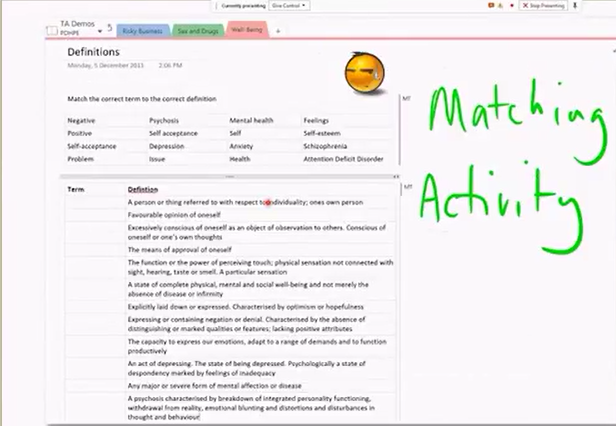
Checklist for students to monitor their work progress: Teachers are creating checklists for students to make sure they are completing projects. These "to do" lists can be updated by students and teachers, singly or together.
Provide audio instruction and/or feedback on student work: Teachers can provide audio feedback on students' work, and when properly shared, students can provide feedback on each other's work. What's more, they can also include audio instructions for a lesson or project with the rubric students need. This can ease the worries of anxious students who may not be able to read well.
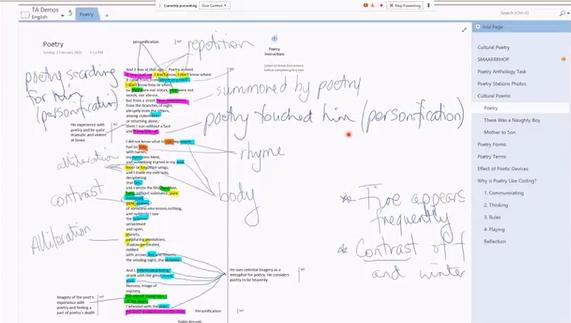
Mindmapping: With a touch-screen-capable computer, teachers and students can do mindmapping and add ideas with digital ink.
Digital marking/grading: Draw or insert check marks or badges/digital stickers onto student work in OneNote.
Students and teachers would be given OneNote 2016 software, available at no cost, and OneDrive. OneDrive offers five gigabytes of free storage for a "personal" account or one terabyte if that account is part of Office 365 ProPlus account. OneNote also allows for the export of notebooks/sections so that students can take their work out of their school district's OneNote storage space and save it to their personal, non-school account. You can literally put anything into OneNote, including audio recordings (the OneNote app facilitates audio recording), pictures, handwritten notes, and more. Consider this scenario:
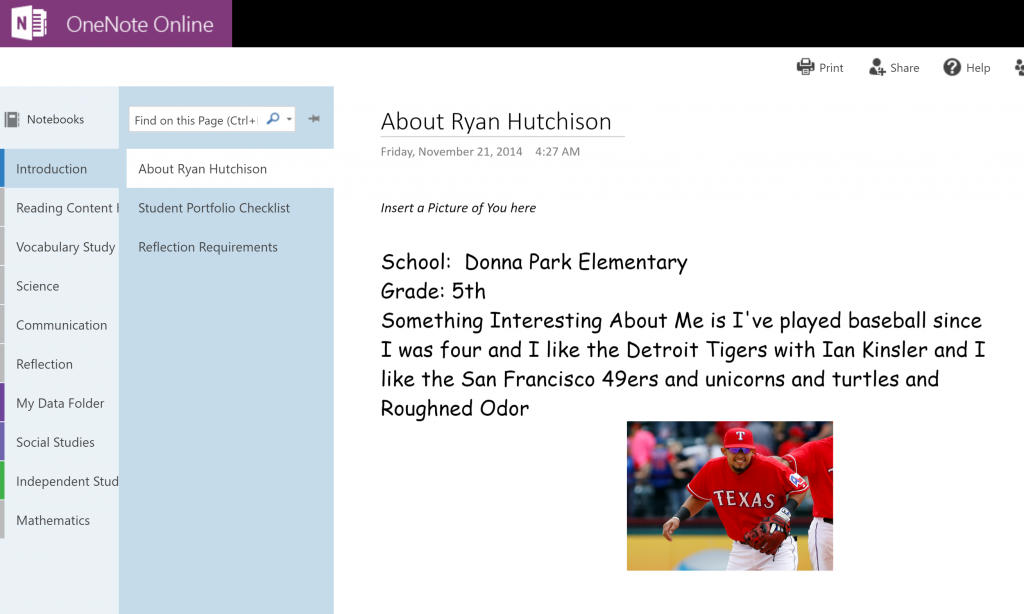
Samantha has completed her DBQ. She signs into her OneNote account and accesses her digital notebook that her teacher has shared with her. She creates a new note and then snaps a picture of each page of her handwritten response. When done, she saves it. She then updates the table of contents in the notebook (easily created with the Onetastic macro).
This process is repeated by each student, who can only see his/her own digital notebook with access by the teacher. The teacher can also annotate (add highlighting, audio comments, or text notes) to each note. Also, all notes, even handwritten ones, can be searched. Students have complete control over notes that are shared with them and the ability to create new ones. Students and teachers can share the student digital notebook with other key stakeholders (e.g. parents, campus/district administrators, or other teachers).
There are some other options than Google and Microsoft, OwnCloud and Mahara, to name a few. But they are light-years behind Microsoft and Google in terms of portfolio use.
Let’s see how far:
Comparison Chart
Criteria
Google Classroom/ Drive
OneNote 2016 + OneNote Online + Office Lens app
OwnCloud
Mahara
Cost
Free
Free with 5 gigs of storage for a personal OneDrive account or 1 terabyte with District Office 365 ProPlus account
Optical Character Recognition (OCR) of handwritten documents
Depends
Yes
No
No
Setup time per student
Unknown
3-4 minutes
Unknown
Unknown
Conclusion
Wondering which solution is best? It depends on your district’s level of commitment. Giving students an option to create a digital notebook, to which their teachers can add feedback and data to over time and that will follow them into college, would be a blessing for many. Teaching students how to organize their information empowers them, teaching them skills they will certainly put to good use in college and life.