

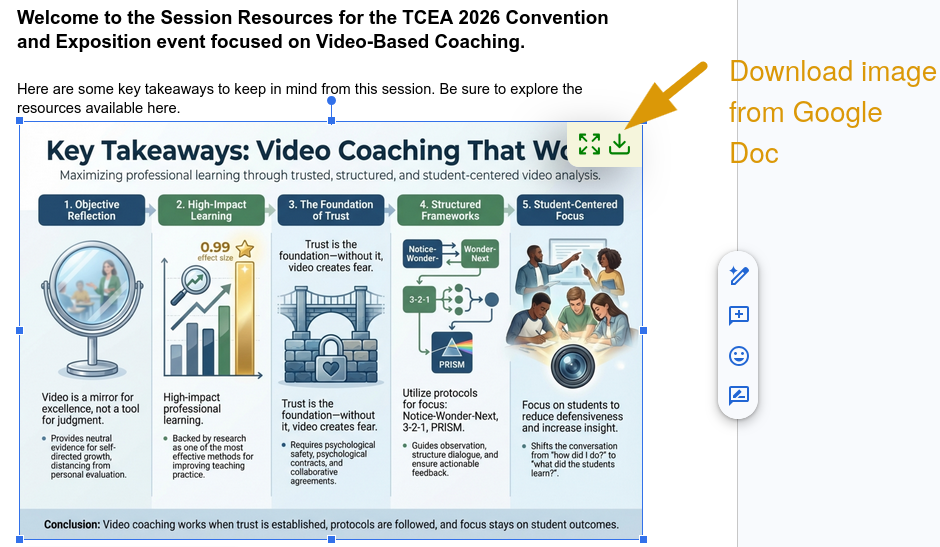
Have you ever opened a Google Doc someone shared, even one you have made, and wanted to save the image? You right-click, but nothing happens? There’s no “Save image,” or download option. It can be a bit of an irritation or annoyance. Google does not make this easy on purpose. However, I find myself in this workflow every day. Today, I decided to do something about it. And, so should you.
Browser add-ons exist to solve these small, recurring frustrations. The five browser add-ons below cover image saving, YouTube sanity, and video capture. None of them require a paid subscription, even though they may save your sanity when in the middle of a work project.
What’s in My List of Must-Have Browser Add-ons
Each add-on below includes links for Chrome, Firefox, or both. A few notes before you install: Firefox’s version of Video Download Helper supports YouTube downloads. Chrome’s does not. That distinction matters if YouTube is part of your workflow. Everything else works in both browsers unless noted. It’s also worth mentioning that you might get the same developer of an add-on for Firefox or Chrome. I tried to find versions that did the same thing.
Add On #1: Bulk Image Downloader
Need every image from a page at once? This add-on grabs them all and packages them into a compressed, ZIP file. It is the kind of tool you do not think about until you need it, and then you wonder why it took you so long to find it.
Add On #2: Google Docs/Sheets/Slides Image Download and Zoom
This one solves the right-click problem I mentioned earlier. It lets you preview, zoom, and download images embedded in Google Docs, Sheets, and Slides. I use this regularly when a colleague drops a chart into a shared doc and I want a clean copy for a presentation or blog post.
Here’s an alternative version focused on Google Docs (where I spend most of my time). This add-on is Chrome-only and built specifically for Google Docs. If you work primarily in Chrome and Docs is your main document environment, this may be all you need.
Add On #3: Unhook: Remove YouTube Recommended Videos and Comments
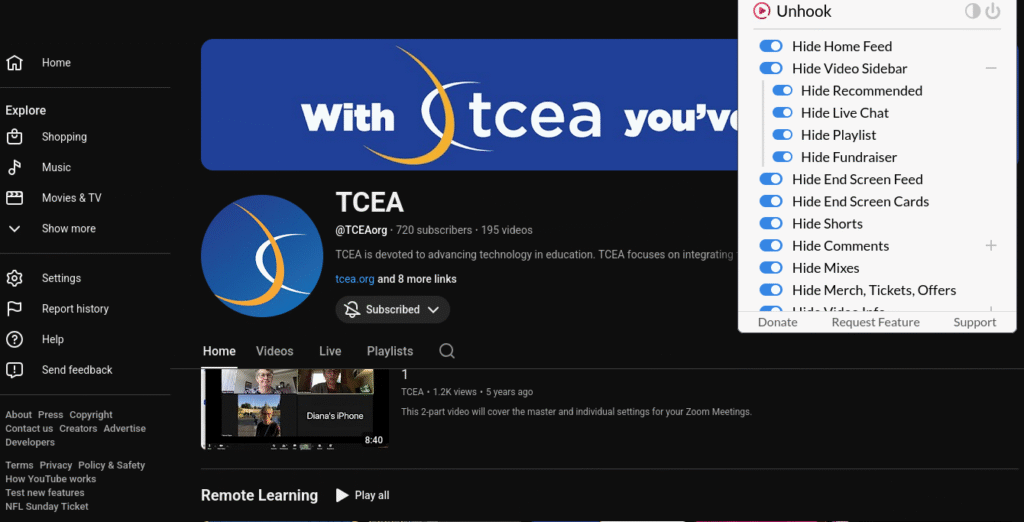
YouTube is not designed for focused viewing. The recommended videos, autoplay queue, and comments section are built to keep you scrolling. Unhook is designed to strip those elements out. You get the video and that is all. What’s more, it works on Android devices as well. Install the Kiwi Browser (contains in-app ads) from the Play Store, open the Chrome Web Store inside it, and add Unhook from there. Worth doing if using YouTube on Android compatible device.
Add On #4: Video Channel Blocker
This add-on hides videos from channels you do not want cluttering your YouTube feed. If you use YouTube in the classroom or for professional learning, keeping the feed clean matters. Select a channel once, and its videos disappear from your recommendations.
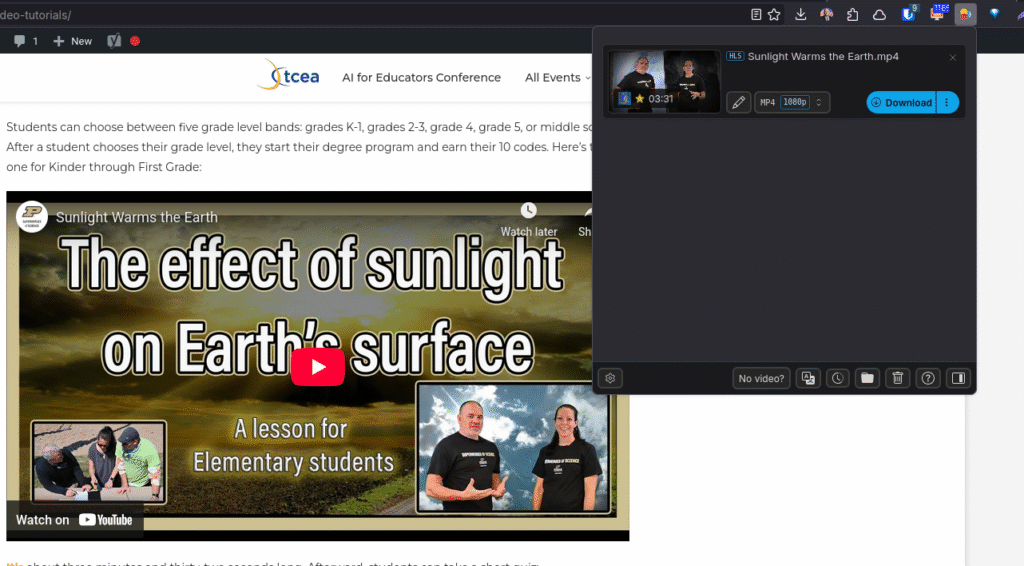
Capturing video embedded in a webpage, like TCEA TechNotes blog entry using Video Download Helper.
Add On #5: Video Download Helper
Not only is this the most capable tool on this list, it’s one I use every week (I purchased it, this add-on is that useful). It extracts video and audio from sites across the web. The Firefox version (or Waterfox browser) handles YouTube. The Chrome version does not, due to restrictions Google has put in place.
If you have read the Video Magic for Teachers post on TechNotes, you already know why audio extraction matters. Pull the audio, run it through a transcription tool, and you have a text file ready for quiz generation. The premium version (approximately $29, lifetime license) expands the format options and is worth the cost if you do this regularly.
- Chrome version (no YouTube support)
- Firefox version (YouTube supported)
A Simple Starting Point
If you are not sure where to begin, here is a short sequence focusing on you may find most useful, first. Install one at a time. Use it for a week before adding another. That way you actually build the habit instead of just cluttering your browser toolbar.
| Add-On | Why Get This |
|---|---|
| Unhook | Immediate focus improvement for YouTube-heavy workflows |
| Google Docs Image Download and Zoom | Solves the right-click problem you have had for years |
| Video Download Helper | Opens up audio extraction and quiz creation workflows |
| Video Channel Blocker | Keeps feeds clean after you start using YouTube more intentionally |
Which of these fills a gap you have been working around? Please let me know in the Comments.