
You’re starting your Sunday afternoon lesson preparation, and find that you need to record a quick walkthrough of a science simulation, then edit a PDF before posting it. You also have to capture three screenshots for a quick explainer email, and set up a digital whiteboard for tomorrow’s bell ringer. Back in the day, each task may have cost you or your school money. Austerity measures this year cut those subscriptions you relied on, and you’re saving your twenty dollar a month discretionary income for something the family needs. Where can you find alternatives to paid subscriptions? If that’s a question you are asking in anticipation of the coming year, here are four free solutions. One of them, I put together myself with vibe-coding.
These four free tools, three of them open source, one a personal experiment posted publicly, are for you as much as for me. I use each of them every week, if not some daily. Each one solves a specific problem you actually run into during a normal week. For more vibe-coded solutions for educators, check my previous blog entry.
In This Post
Here are the solutions you will find in this blog post:
- Recordly: screen recording with a built-in editor
- ShareX: screenshots, recording, and OCR for Windows
- RevPDF: offline PDF editing
- DrawSplat: a browser-based whiteboard with a classroom mode
Let’s jump in and explore what’s available.
Solution #1: Recordly Screen Recorder
Recordly is a free, open-source screen recorder with a built-in editor for Windows, macOS, and Linux. Most free recorders give you the recording but stop there. Recordly includes a timeline editor, smooth zoom effects, custom cursor styles, and webcam overlays. You get a polished walkthrough with the editing tools, if that’s what you need when posting to your class Google Sites/Classroom, OneDrive, or learning management system (LMS).
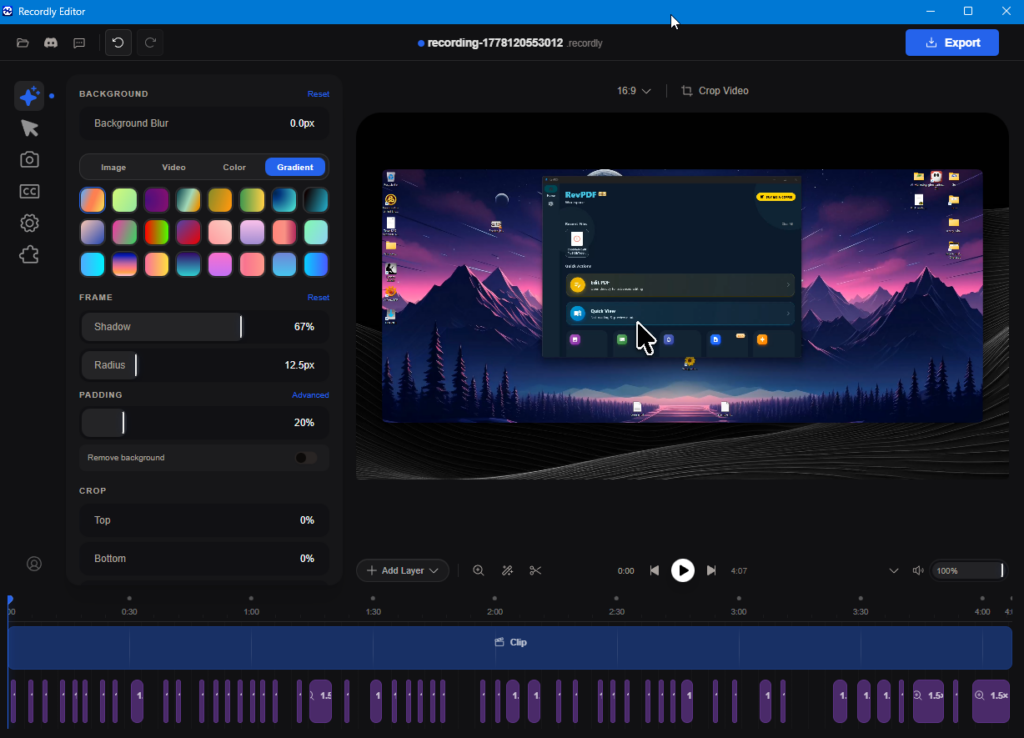
Recordly video editing window (screenshot by author)
To get started:
- Get the right version for your operating system (e.g. Windows, Mac, Linux) from the Recordly releases page; alas, no Chromebook version available
- Test a short clip first. The recent v1.2.x release improved audio stability, but webcam-to-audio sync is still being refined
- The Linux AppImage runs without an install, which is useful for shared lab machines
I found Recordly drop-dead simple to use on Windows, and I have high hopes for my Mac colleagues. For fellow GNU/Linux users, if this does not work, you can always try SimpleScreenRecorder or OBS Studio.
Let’s move on to solution two, ShareX, for getting screenshots and making animated GIFs. That second feature is what sold me.
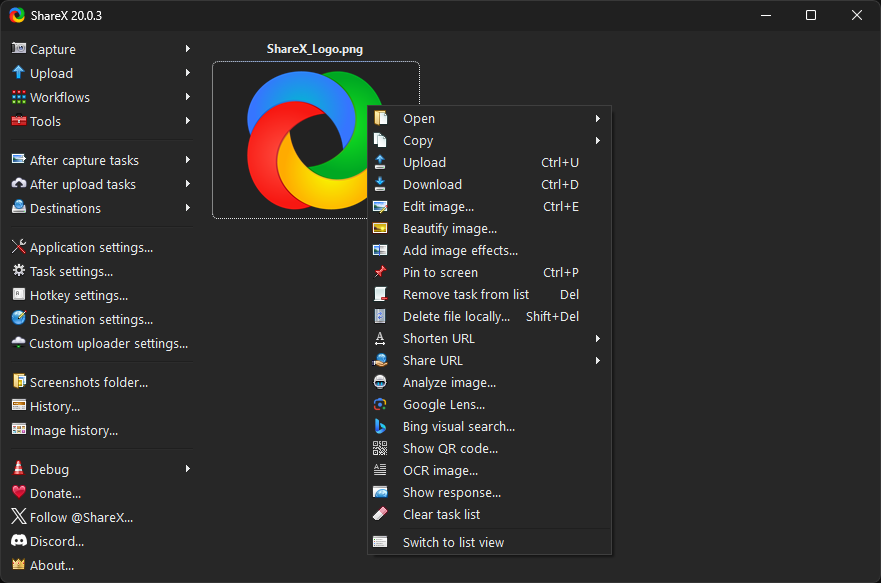
Image Source: https://getsharex.com/
ShareX
ShareX is a free, open-source capture and productivity tool for Windows. I love LightShot, which works in your browser as well as on Windows and Mac. It’s quite versatile, but doesn’t create animated GIFs. ShareX is the tool to use for screenshots and animated GIF creation.
If you live in Windows, ShareX is the everyday tool I would reach for first. It handles region screenshots, full-screen captures, scrolling captures, screen recording, GIF recording, and Optical Character Recognition (OCR). The image editor includes arrows, blur, pixelate, step numbers, and speech balloons, all in one window. I love being able to quickly annotate screenshots in a variety of colors, draw boxes, and more around or near content.
Two super features worthy of highlight:
- The OCR tool pulls text out of any image in seconds. Some people rely on Google Keep for this, but there are times when you don’t want your data being saved into the Google Cloud. This isuseful when a colleague sends a screenshot of a paragraph instead of the file, or a picture of a top secret document.
- The custom uploader lets you push captures directly to a school server, your own cloud storage, or a shared drive without bouncing through a third party
ShareX is Windows only. If that is a dealbreaker, check out Lightshot, which can be installed or works in a browser, as well as Shutter on GNU/Linux. All these tools are free, of course, so trying out what works best will not cost you a dime, only time. Spend time now to save it later.
RevPDF
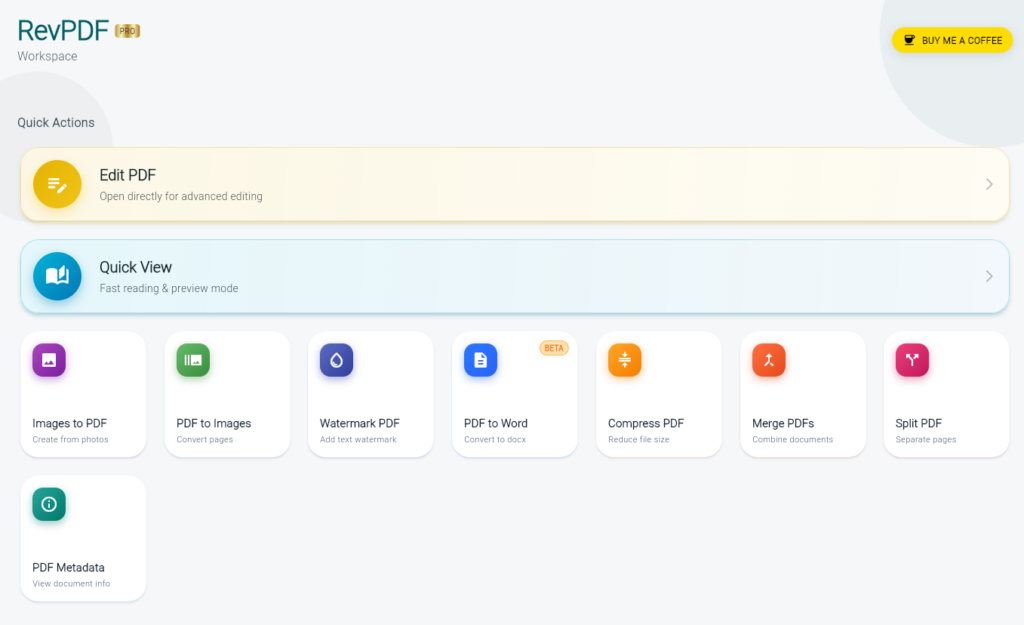
If you need an easy to use, free offline PDF editor for macOS, Linux, Windows, Android, and iOS, then RevPDF is the tool to checkout. I usually edit PDFs on my desktop devices (e.g. Windows, Linux), and RevPDF makes that task easy.
Since I often work with PDFs, I will find myself wanting a quick editor to insert text or edit a few text fields. You can do that with RevPDF and more, such as, redact a name, sign a form, split a page out, compress a file before email. A big benefit? RevPDF does all of that without an account in the cloud or locally.
My favorite feature in RevDev is using the redaction tool to remove underlying text and images. That can make a difference, especially when there is sensitive data in the document. Some other features worth looking at:

You can get RevPDF from the developer’s site. Desktop versions are free, and the mobile app has a 4.6-star rating on Google Play. I promptly paid about $10 for my lifetime version of the Android version. I thought I could do that since I’m not spending $100 a year on a whiteboard style solution. Instead, I’m using DrawSplat, an interactive whiteboard, I vibe-coded one evening while my wife watched the Spurs basketball game.
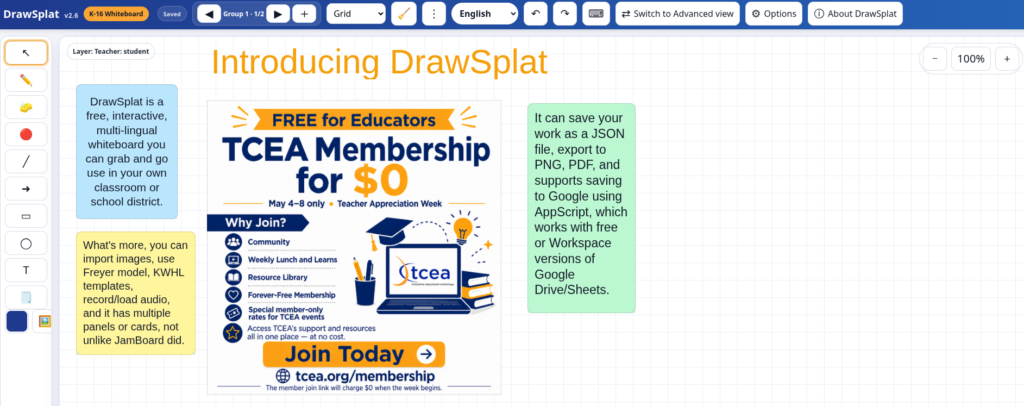
Simple view of DrawSplat with panels you can set images as wallpaper (Jamboard style), add stickies, import images, and more
DrawSplat
DrawSplat is a free, browser-based whiteboard. It is, at the time of this writing, at version 2.6 but I will be enhancing it even more in the future. It features a general workspace mode and a full classroom mode. It sports a “Simple” view, as well as an Advanced view. Check the options to enable Teacher/Student features, and more. For those that recall Jamboard, DrawSplat makes it easy to set a wallpaper background on any one or more of several panels:
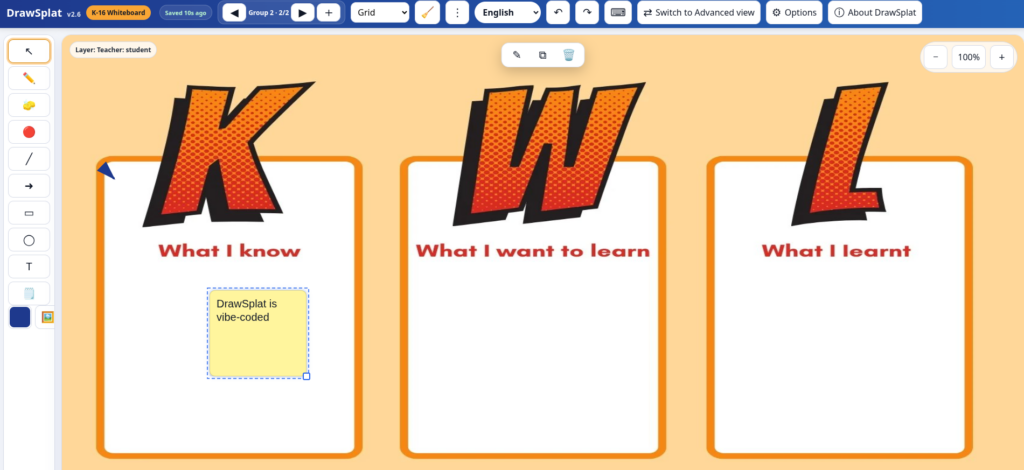
Panel 2 of 2 with KWL wallpaper
Web-based whiteboards have shaped how classrooms gather visual thinking. Most of them want an account, a class roster, or a subscription tier before students can do anything useful. As you can see, it boasts several features, including one of my favorites, the multiple panels.
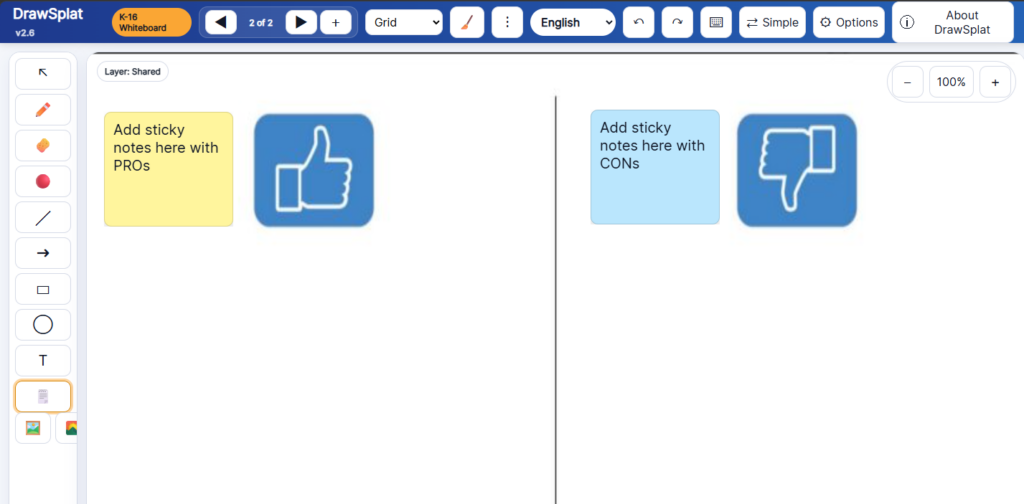
Older version of DrawSplat with Thumbs Up and Thumbs Down
DrawSplat is the alternative I vibe-coded to skip that friction. What you get:
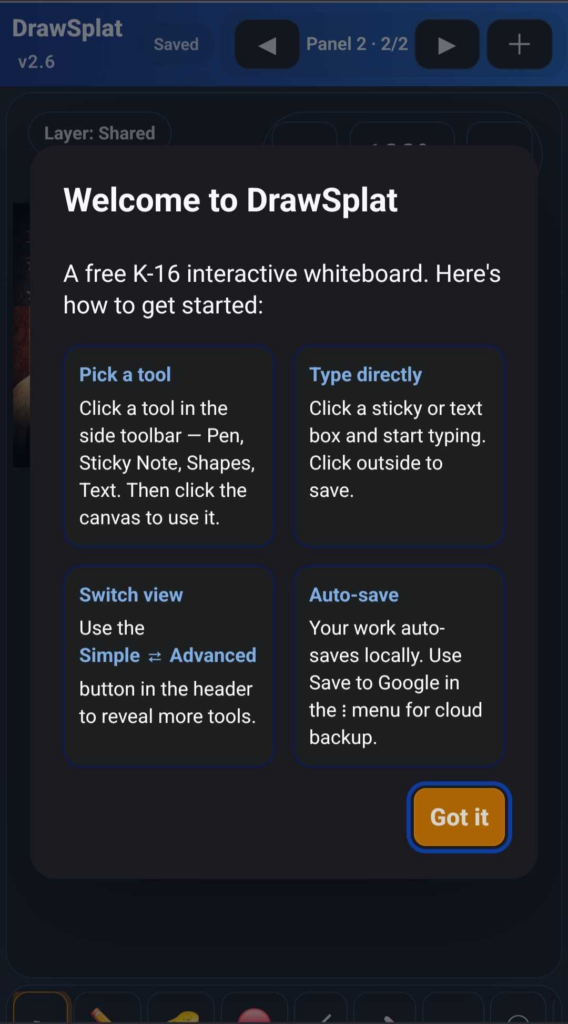
Screenshot of DrawSplat on author’s smartphone
- Faster, smoother tool switching: Icon clicks now switch tools immediately, whether users click the icon or the label.
- Simple and Advanced modes: Simple mode keeps the core classroom tools visible, while Advanced mode unlocks the full toolkit for power users and complex activities.
- Direct canvas editing: Users can type directly inside shapes, notes, comments, and labels, with inline editing, wrapping, alignment, rotation, and quick keyboard controls.
- Classroom-ready boards, panels, and language access: Multiple panels support stations, lesson steps, group work, templates, locked teacher layers, answer keys, and student turn-ins.
- Multi-language support includes English, Spanish, French, German, Italian, Portuguese, Chinese, Japanese, Korean, Arabic, Hindi, and Russian.
- Expanded creation, collaboration, and export tools: DrawSplat supports images, sticky notes, audio notes, stickers, comments, restore points, local/cloud collaboration, PNG/PDF export,
.drawsplat.jsonsave/load, and a playful TNT reset effect. - Responsive web design makes DrawSplat mobile-friendly: You can access DrawSplat on your smartphone or tablet via your browser.
Give it a spin online. Fill out this form for a copy of the code.
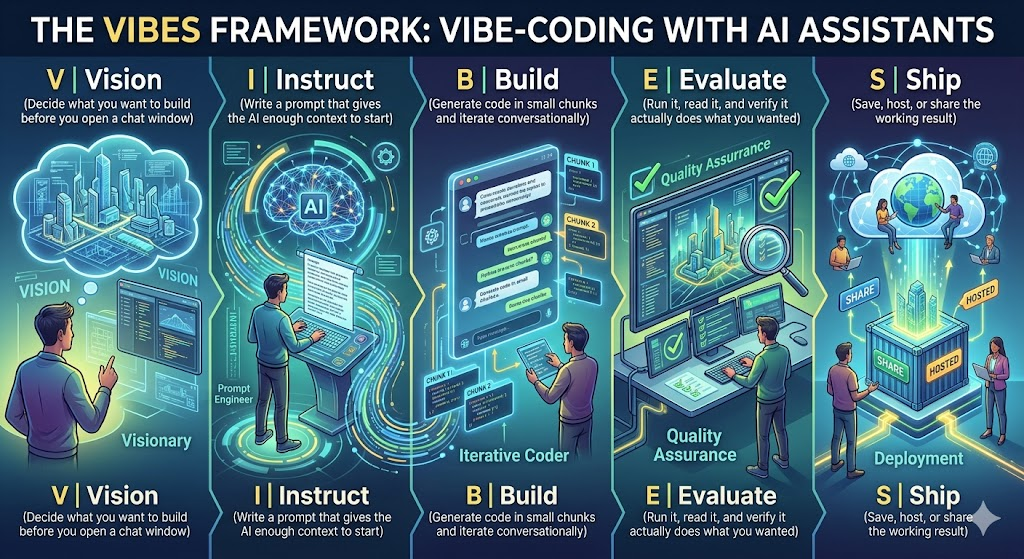
What Can I Do with the Code for DrawSplat?
Once you get the link to a copy, you can open it and use it on your computer via your web browser (like Chromebook). You can also get your Technology Department to host it on a web server on the intranet. Or, get your own GitHub site and host it there, like I did. You can modify the code, but make sure to give ChatGPT, Claude, and I credit. We worked hard on it. Want to learn how to vibe-code? Why not let me show you how in the AI Essentials for Educators course. It’s 10% off through the end of June. See below for the discount code.

Sign up before the end of June, 2026 and take advantage of this 10% off coupon for the AI Essentials for Educators course. Get 17 CPE hours, a badge, certificate, and learn about a wide variety of Gen AI solutions, including vibe-coding.
Pick One, Use It This Week
The common thread for all of these is that you can use these tools to get work done, and not spend money to do it. That’s important in tough times like these. Three are open source. One is a personal experiment posted publicly so you can use it or fork it.
Pick the one that maps to a problem you have been solving with a paid tool, and try it this week.
Did You Know? TCEA offers an AI Essentials for Educators course that covers all the tools and vibe-coding. How cool is that? Earn 17 CPE hours, badge plus a certificate. Sign up before the end of June, 2026 and get access for a year. How cool is that? If you check the TCEA Community’s All About AI group, you’ll find a 10% discount code, too. Expires end of June.
Tell me in the comments which of the four earned a permanent spot in your toolbox.