
Do you have a panel of GenAI “experts”, like Perplexity, ChatGPT, and/or Google Gemini, on your smartphone? Ever wished you had a Star Trek Voice interface (see video below)? If you’re like me, you may have. Some GenAIs answer work questions, some respond to questions about good places to eat near me. Others offer insights on a variety of educational topics and insights. While it’s nice to type some requests, it’s getting increasingly easy to speak your query. iOS Shortcuts makes interacting with AI voice assistants a lot easier. Whether you need a quick answer from Perplexity during lesson planning, want to brainstorm ideas with ChatGPT’s voice mode, or live chat with Gemini, voice assistants make the job easier. Use the iOS Shortcuts app to make accessing GenAI info quicker and easier.
Wait, Are You a University Student?
If you are a university student, you may also have access to GenAI chatbots at no charge. No doubt, you may have seen the announcements:
- Gemini Advanced is free for students through finals 2026
- Perplexity Pro Goes Free for Students: Claim Before May 31!
- ChatGPT Plus is now free for college students through May
- Anthropic’s Claude AI Enhances Learning
University students are demanding 24/7 AI support. One way to accomplish that is through the use of AI voice assistants, now available for major chatbots.
Why Use Shortcuts for AI Voice?
Having quick access to an AI voice assistant can be useful. No matter what you are doing, you can get quick, just-in-time support. Manually opening an app, navigating to the voice feature, and waiting for it to activate can be a drag. Like me, you may also be asking Siri to calculate math to double-check your own mental arithmetic. Or, you have a research question where settling for folksy guesses and folklore is insufficient.
iOS Shortcuts eliminate these steps, offering the following benefits:
- Speed: Launch directly into voice mode instantly.
- Convenience: Place shortcuts on your Home Screen, Lock Screen, or Control Center for easy access.
- Hands-Free: Trigger shortcuts using Siri for a truly hands-free experience.
Let’s take a look at how to do this with the iOS Shortcuts app.
Creating Your AI Voice Shortcuts
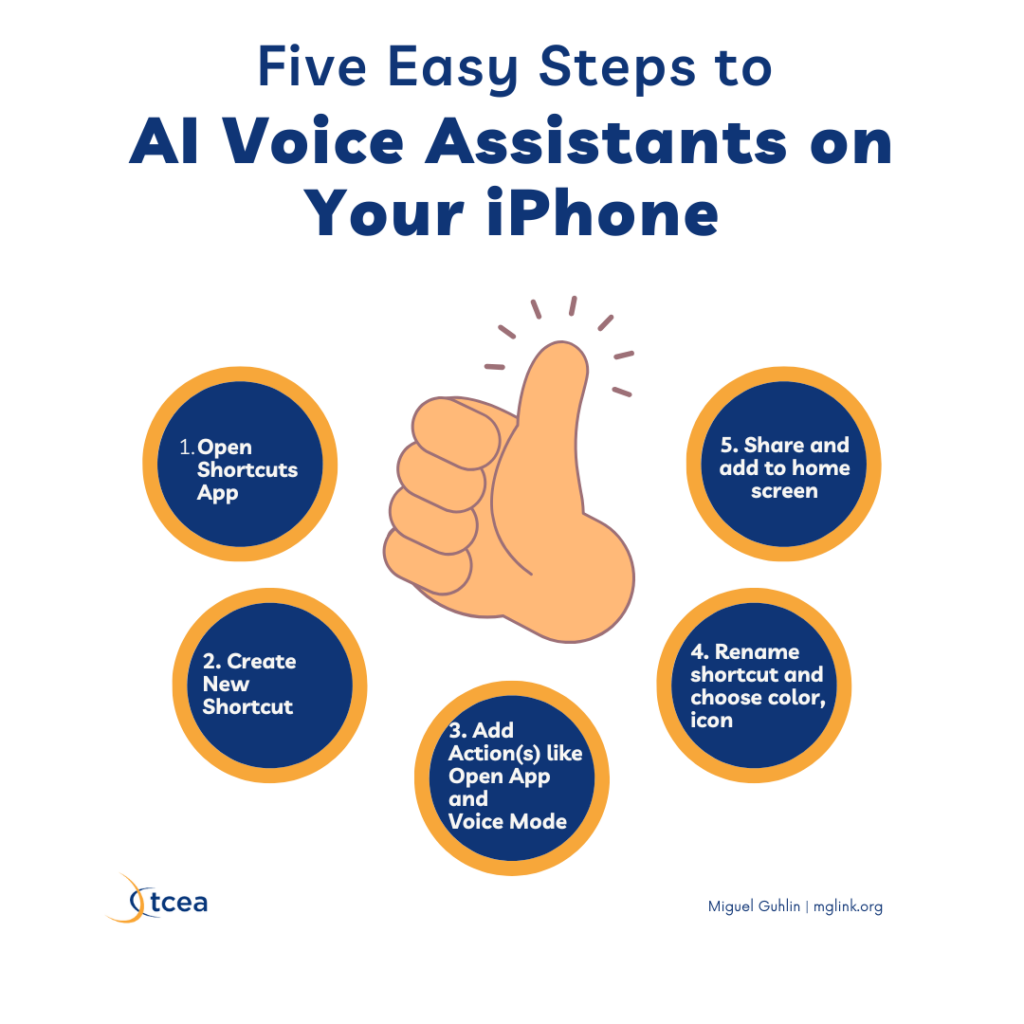
The end goal is being able to say something like, “Ok Siri, talk to Perplexity” or “Ok Siri, talk live to Gemini.” The process is straightforward and similar for most AI apps that integrate with the Shortcuts app. Ensure you have the latest versions of the Perplexity, ChatGPT, and Google Gemini apps. You can install those from the App Store.
General Steps (Infographic Idea)
Specific Steps for Popular AIs
One of the best things about voice chat? You may end up having an involved conversation with the GenAI voice assistant. But later on, even if you forget a step, you can go back and revisit it. For example, I started reading a huge tome from one of my favorite authors in Spanish. Instead of running to a dictionary app or physical text, I simply ask Perplexity to explain the Spanish word I am unfamiliar with. Do I ask it to translate it into English? Absolutely not, I’m a native Spanish speaker. I ask it to explain the word in Spanish. Perplexity does a wonderful job doing this, and I’ve learned a few Spanish words I had not encountered yet (other dialects of Spanish).
The process isn’t perfect, so you may run into an occasional issue. Your goal is to get something like these three icons on your phone, unless you aren’t depending on having a three-GenAI panel of experts at your fingertips.
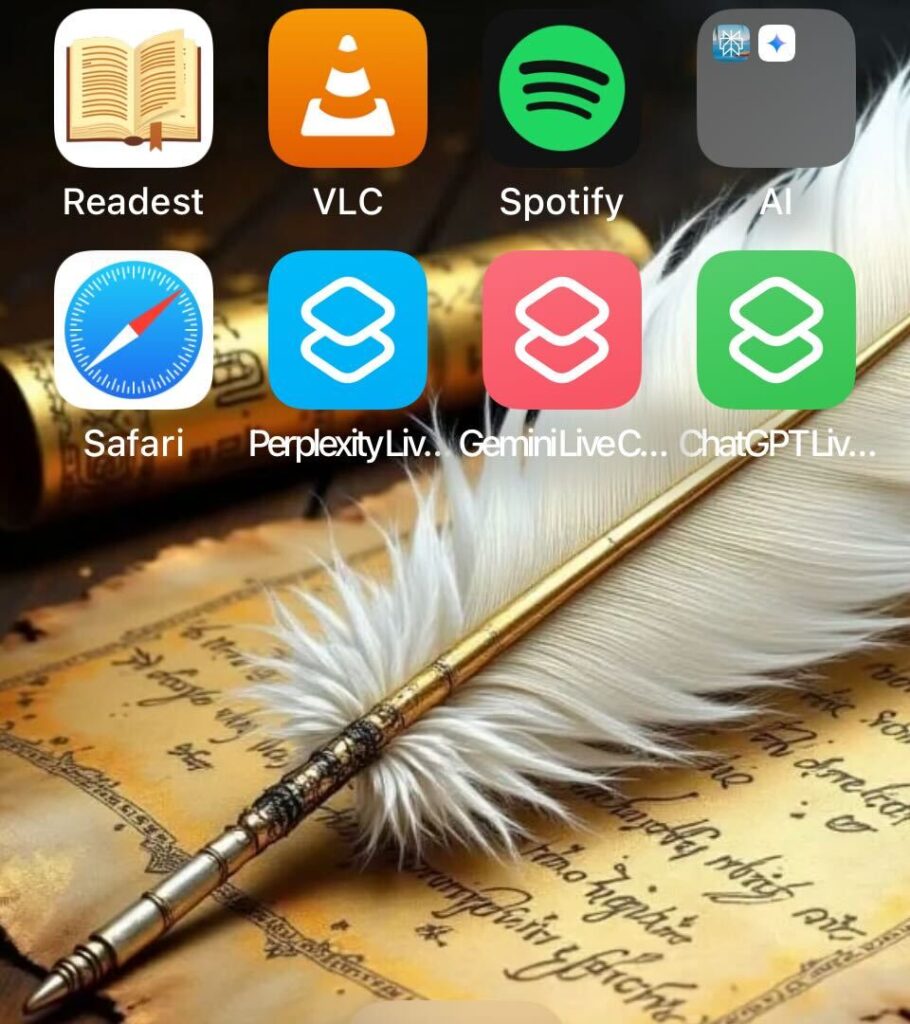
Above, you will see a screenshot of my iPhone desktop. You can see that the second row of icons include Perplexity Live Chat, Gemini Live Chat, ChatGPT Live Chat. Tapping any of those will drop me into a Voice Assistant conversation with the GenAI. Even easier, all I have to say is, “Hey Siri, [fill in Live Chat option here].”
Let’s take a look at how to get these going on your phone.
Perplexity Voice Assistant
Perplexity is my favorite voice assistant. I get great responses and while Perplexity stops just short of being an agent (taking action based on my instructions), I get that feeling AI-powered actions are coming. For example, “Re-order my favorite plate from DoorDash but change the drink to un-sweet tea and lemonade (yuck, maybe not).” For Whats-App users, you may also find another announcement worth exploring.
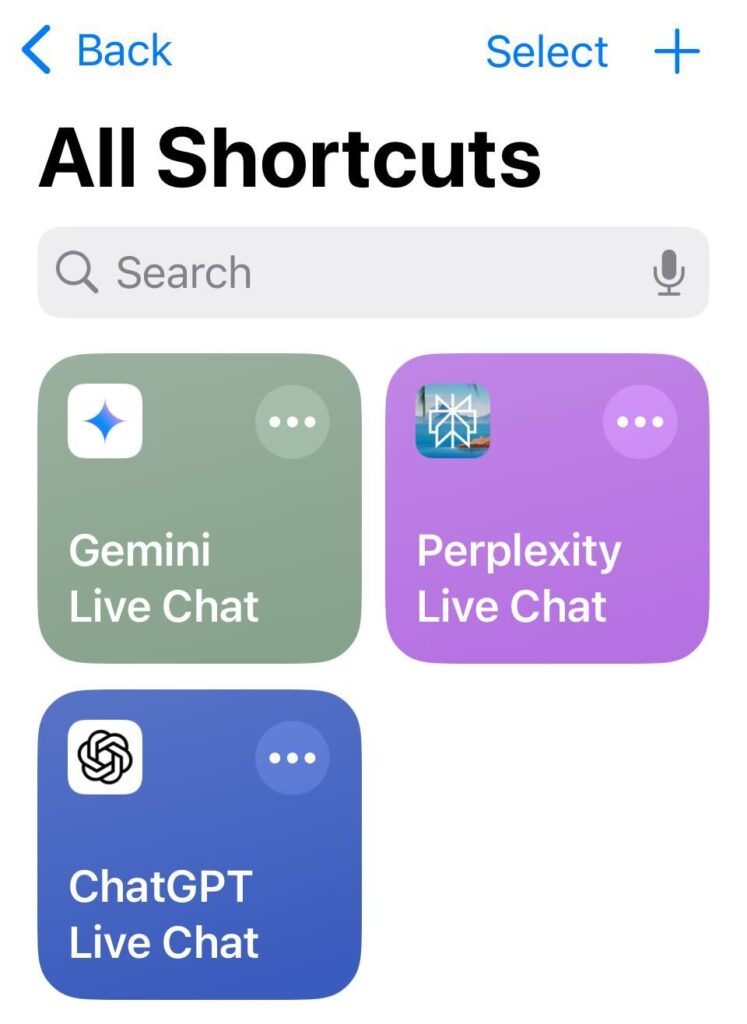
- Open the Shortcuts app.
- Tap the + icon.
- Search Actions and select “Open App” then modify “App” to reflect “Perplexity”
- Search for “Perplexity” and select Start Voice Mode (or a similar voice-related action). Adding it as a shortcut enables you to rename it.
- Tap the arrow next to the shortcut name at the top to Rename it (e.g., “Perplexity Live Chat”).
- Tap Done.
- To add it to your Home Screen (Share->Add to Home Screen), tap the three dots on the shortcut, tap the small down arrow next to the name, and select Add to Home Screen. You can also add it as a Lock Screen widget or assign it to the Action Button in Settings.
You can read about the process via Perplexity’s website, too.
ChatGPT Advanced Voice Mode
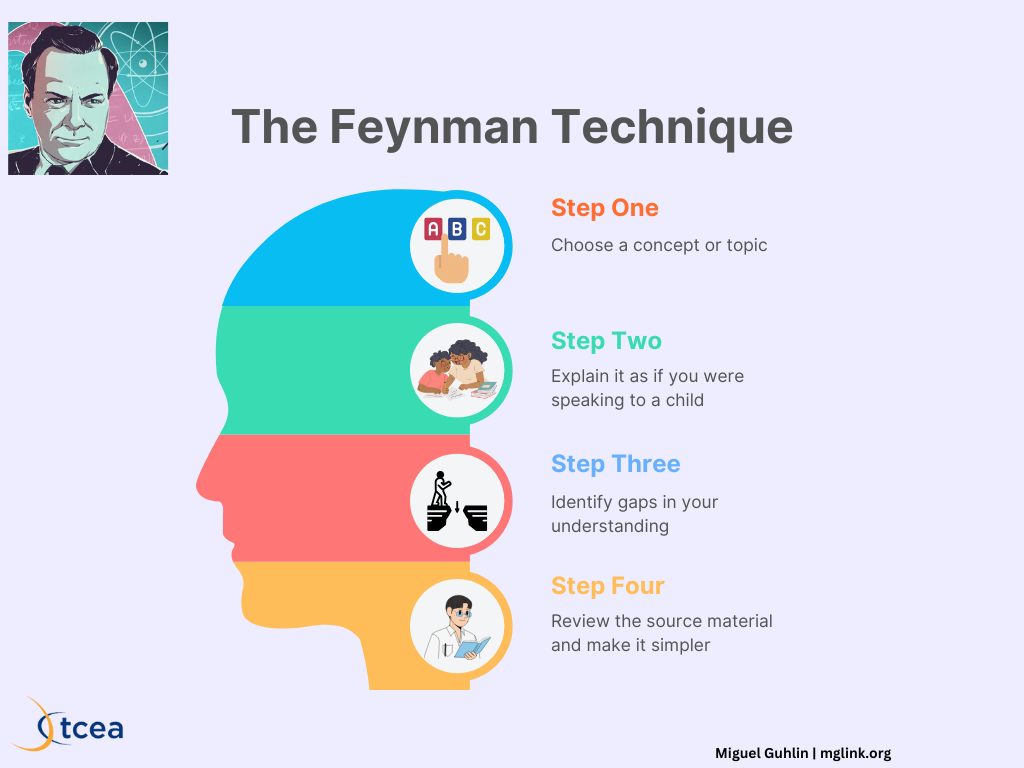
My first conversation about high-effect size instructional strategies involved ChatGPT. I ran over to a colleague’s office one Tuesday, excited that ChatGPT could explain something complex in simple language. You can ask ChatGPT to employ the Richard Feynman technique (see infographic above).
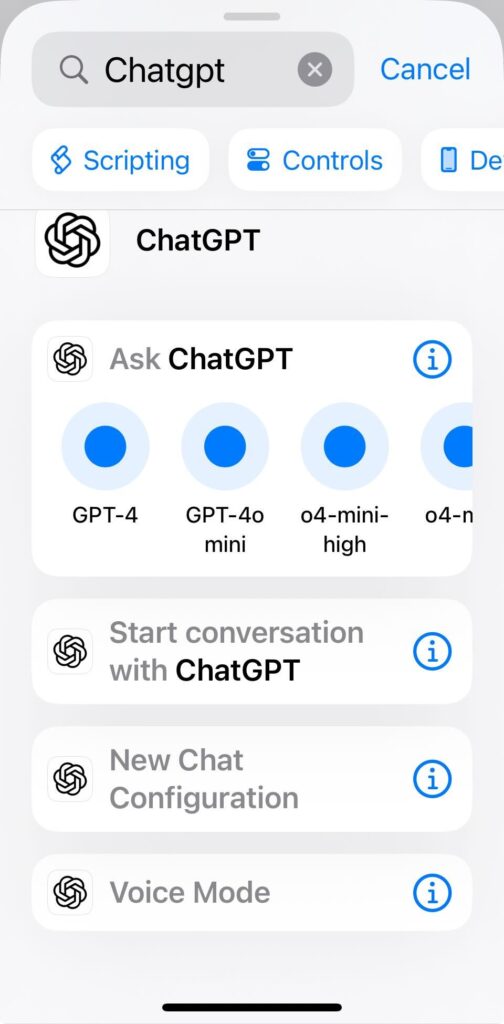
- Open the Shortcuts app.
- Tap the + icon.
- Search for “ChatGPT” and select Voice Mode. Adding it as a shortcut enables you to rename it.
- Tap the arrow next to the shortcut name at the top to Rename it (e.g., “ChatGPT Live Chat“).
- Tap Done.
- Add it to your Home Screen (Share->Add to Home Screen), Lock Screen, or Action Button following similar steps as above. You can also trigger it by saying “Hey Siri, Talk to ChatGPT“.
Read more about how to do this.
Google Gemini (Talk Live / Open Mic)
A newcomer on my phone, Google Gemini 2.5 Pro (experimental) has proven a welcome, if slightly aloof, voice assistant. The aloof part comes from the voice I have chosen for Gemini, which is less warm in temperature than the one I have for the other voice assistants.
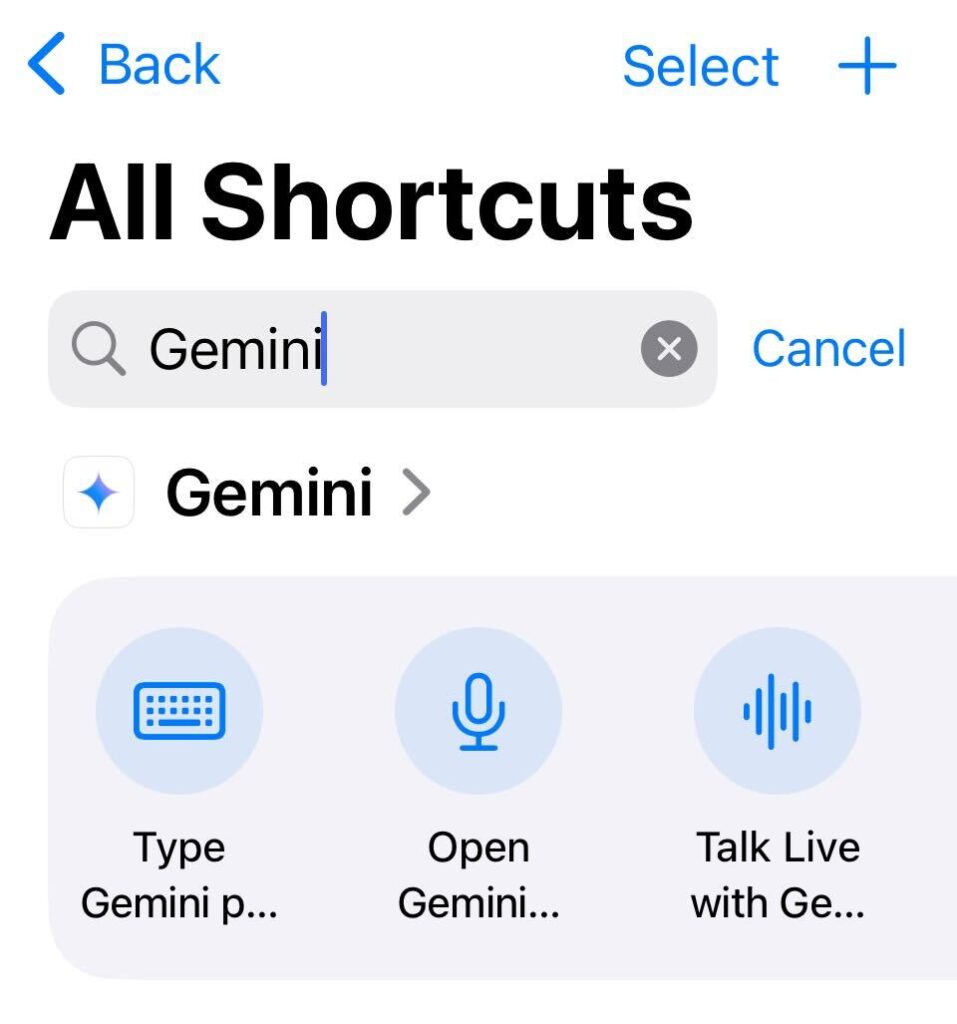
- Open the Shortcuts app.
- Tap the + icon.
- Search for “Gemini” and select either Talk Live with Gemini (for conversation). Adding it as a shortcut enables you to rename it.
- Tap the arrow next to the shortcut name at the top to Rename it clearly (e.g., “Gemini Live Chat”) to avoid Siri confusion.
- Tap Done.
- You can trigger these with Siri (“Hey Siri, Gemini Live Chat”). You can also add Gemini actions as Control Center buttons or Lock Screen widgets via your iPhone’s Settings and Lock Screen customization options.
The Shortcuts app has gotten much easier to use, and in the future, may get even easier. For now, you should have several voice assistants you can use.
Streamline Your AI Interaction
By taking a few minutes to set up these shortcuts, you integrate powerful AI voice tools more seamlessly into your daily routines. Reduce app-switching fatigue and get the information or creative spark you need faster than ever. Try creating a shortcut for your most-used AI voice assistant today. Star Trek Voice First computer is turning out a bit better in reality than an old television show.
ChatGPTGeminigenerative AIiPadiphonePerplexityVoice Assistants