Creating engaging digital spaces where students can work well together can be hard. Recently, I was impressed to discover Padlet’s AI Tools, new features designed to assist teachers. And, there’s an exciting new addition introduced at the end, the Padlet Teaching Assistant (TA). Let’s jump in.
What Are Padlet’s AI Features & How Do They Work?
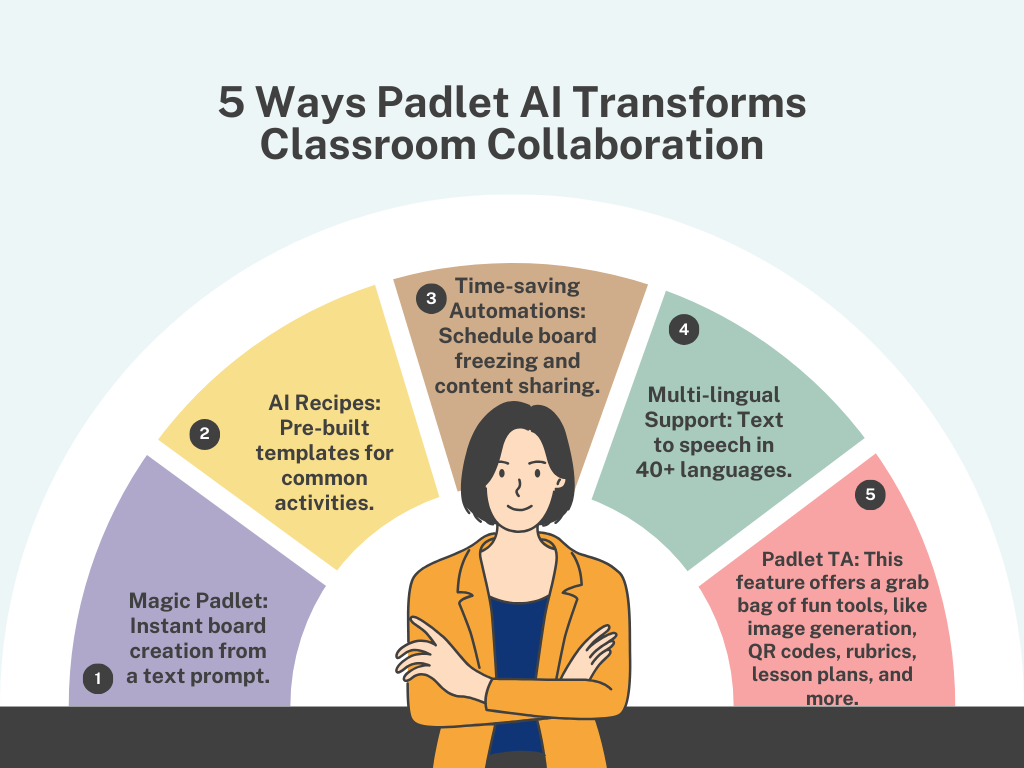
Padlet has introduced several AI-powered capabilities. These are designed to make its collaborative platform even better. One feature is “Magic Padlet.” Given a brief description of what you need, it relies on generative AI to create an entire board. If you aren’t sure what you need, you can use one of several “AI Recipes.” These can make it easier to make content for different, specific, and educational purposes.
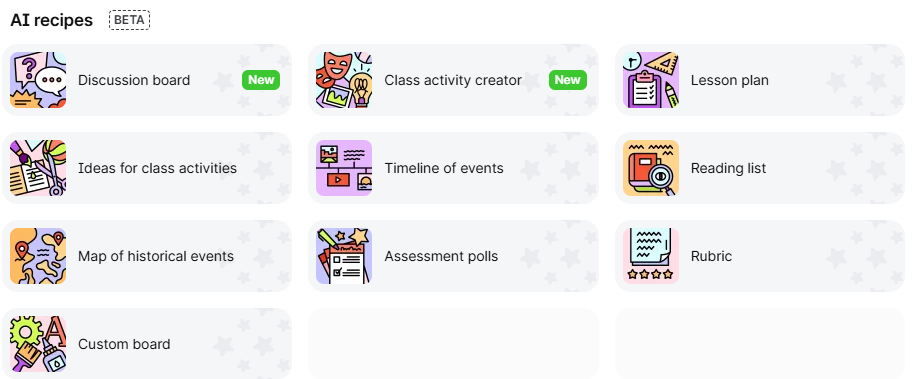
I recently used the AI Recipes feature to create a jigsaw activity for my literature class. I simply selected “Class Activity Creator,” entered my subject (American Literature) and topic (The Great Gatsby themes), and specified my grade level (see image below).
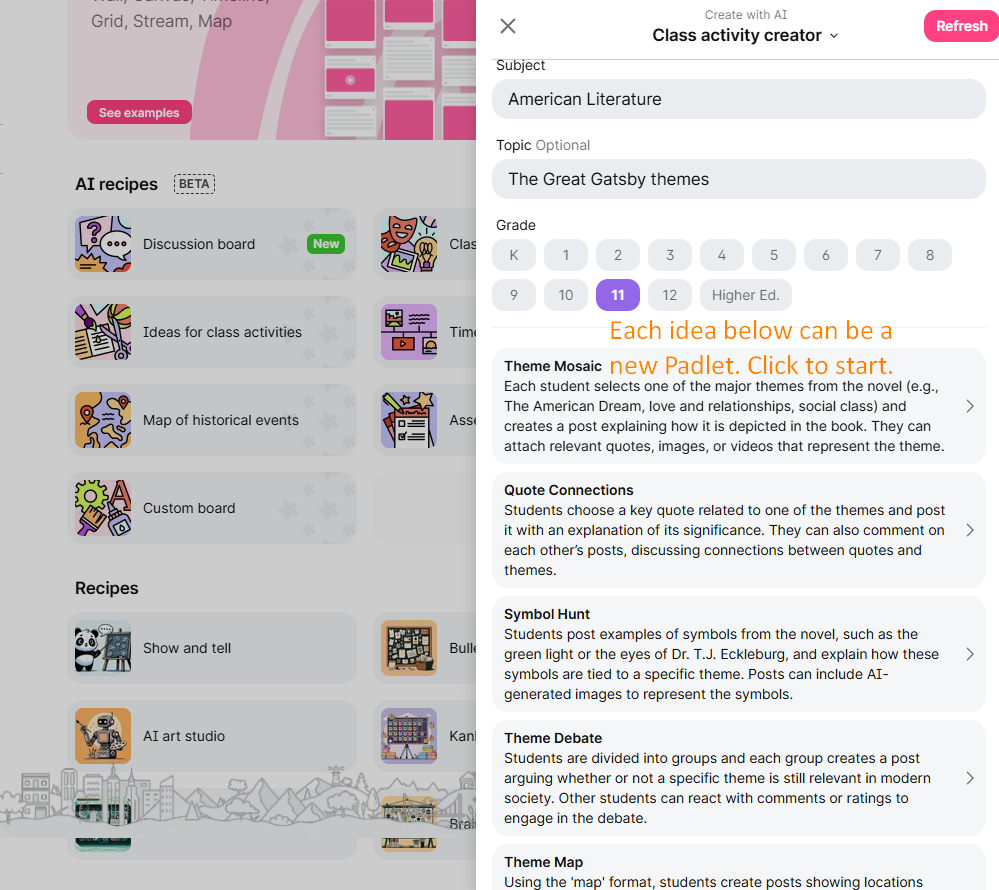
Within seconds, Padlet’s AI generated a complete board structure with logical organization, discussion prompts, sample starter posts, and suggested resources.
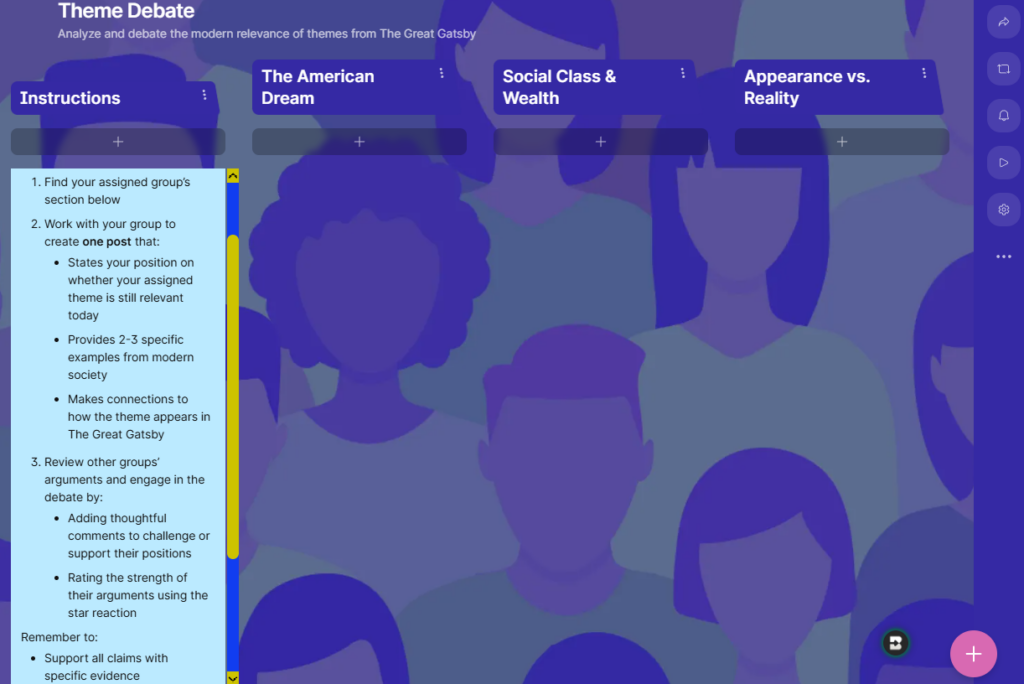
What impressed me most was how customizable everything remained. After the AI generated the initial board, I could easily modify any element to better suit my specific class needs.
Practical Applications
The AI capabilities in Padlet extend beyond basic board creation:
- Lesson planning with the AI Lesson Plan generator that creates learning objectives, materials lists, and assessments
- Creating historical timelines or geographical explorations with AI-powered map features
- Generating reading lists on specific topics with accompanying discussion questions
- Using the “I can’t draw” feature to help students create visuals for projects
- Utilizing AI-generated text-to-speech in over 40 languages
- Automatically generating captions for uploaded videos
Even more helpful? The features to schedule automations, like having a board automatically freeze or unfreeze at specific times (see Automations under the three dots in the sidebar). This makes it perfect for timed activities or assignments with deadlines. What’s more, you can have Padlet assign grades in the gradebook, too.
My Experience Using Padlet’s AI Tools
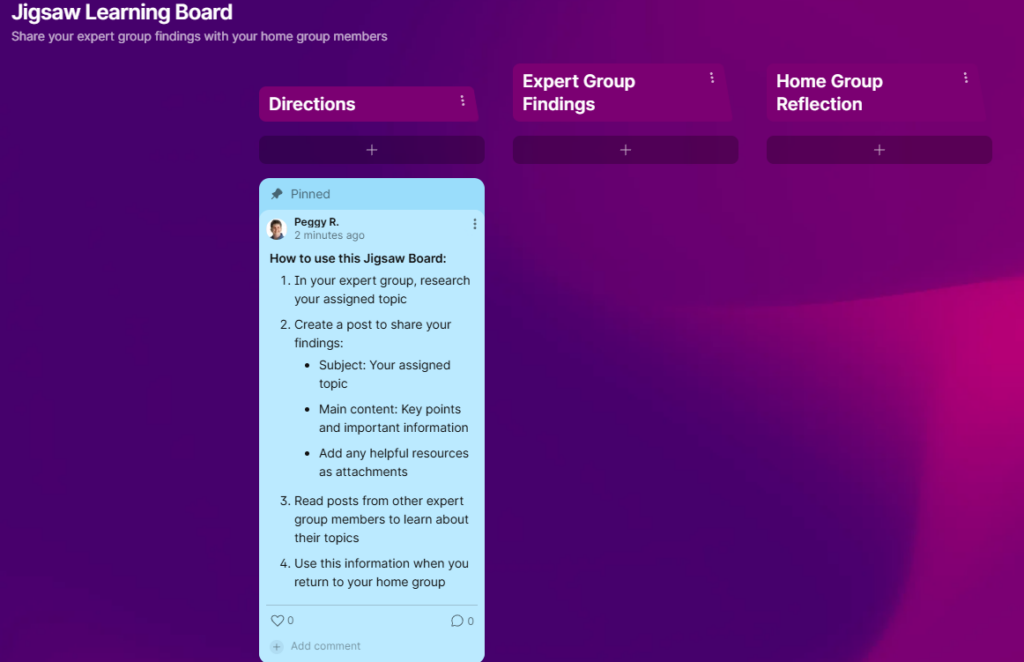
One interesting use is a Jigsaw Learning Board. You can see one quick board for capturing expert findings and reflections below.
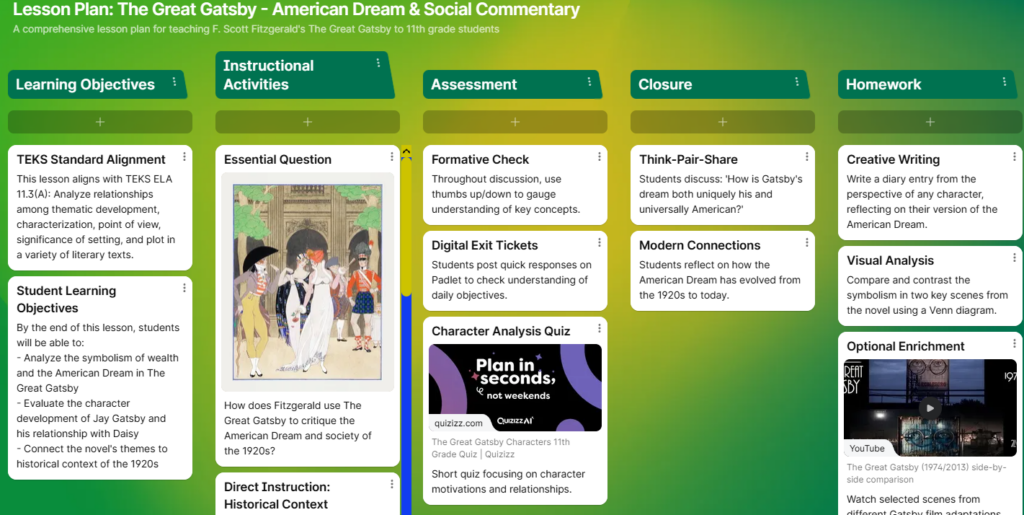
I’ve also used Magic Padlet to quickly create lesson plan boards. You can ask the AI built into Padlet for assistance, providing minimal information:
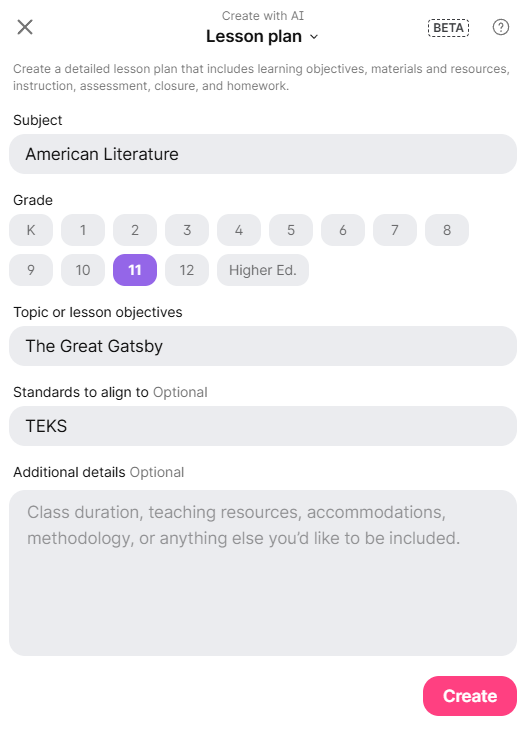
This makes it easier than starting from scratch and you will see several ideas for your lesson. I may or may not use all of these ideas but they are a way to “prime the pump:”
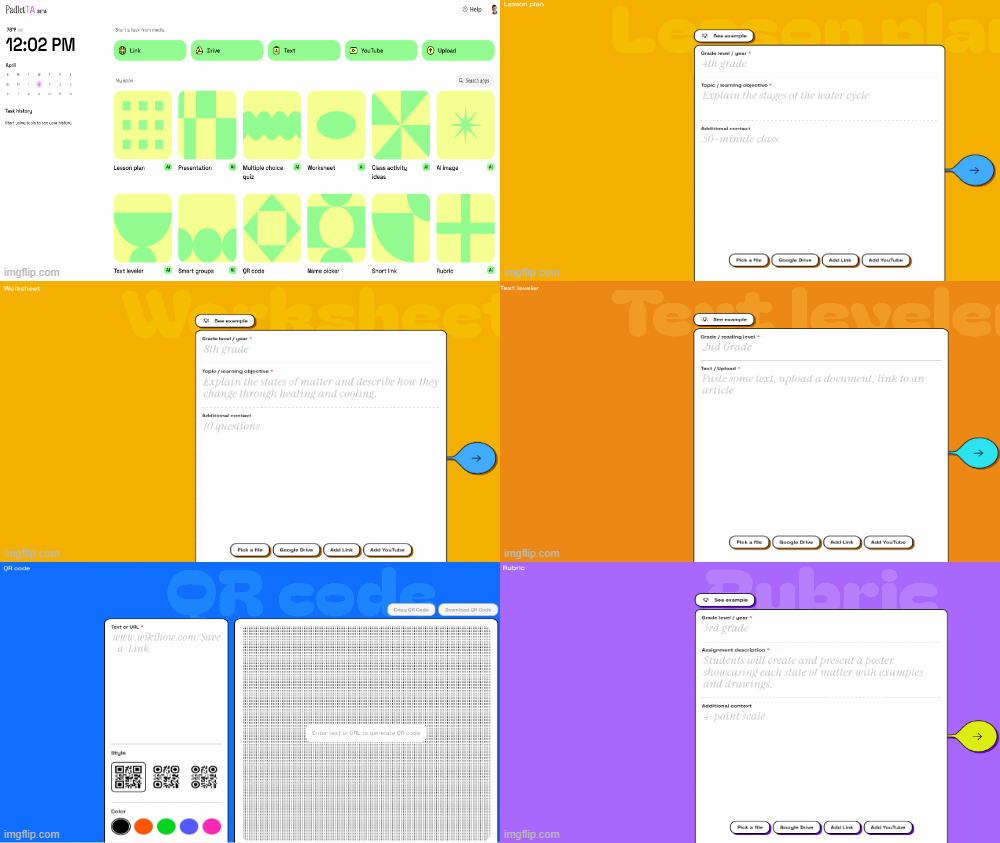
Introducing Padlet Teaching Assistant (TA)
You can get a look at the Padlet TA online (still in beta at the time this blog entry was written). Not only does Padlet TA enable you to connect to Google Drive, but use a variety of sources to create boards. Those sources could include:
- YouTube video
- Links
- Google Drive
- Text you paste in
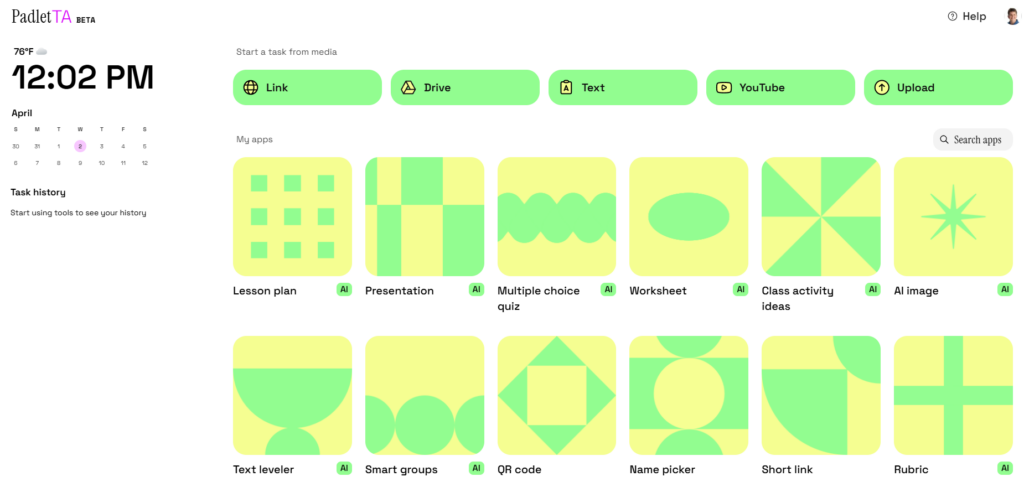
The Padlet TA is pretty generic at the moment, but you can see the potential possible:
Some of my favorite tools in Padlet TA include:
- AI Image Generator – You will love being able to quickly access Padlet’s image generator.
- Name Picker – Need to pick a student name for an activity? This is sure to be a fun alternative.
- Smart Groups – Create groups quickly from your class roster.
- Short Link – Get a Teach.link/yourTitleHere for those long links
- QR Code generator – Make a QR code
The other tools, such as lesson plan, presentation, multiple choice quiz, and rubric are also worth exploring. Padlet’s done a great job making these tools so easily accessible via the PadletTA page. Get a quick tour via the animated GIF at the end of this blog entry.
Looking Ahead
Padlet continues to develop its AI capabilities. I’ve found Padlet’s AI tools to be game-changers for my work with learners. The learning curve is low, and the benefits are substantial.
Have you tried any of Padlet’s AI features yet? What has been your experience? I’d love to hear your thoughts in the comments below!