
You are standing in line at the copy machine on a Tuesday afternoon, phone in hand, trying to airdrop a PDF to your laptop. It does not work. You email it to yourself. The file is too large. You open a cloud app, upload it, re-download it, and spend seven minutes doing something that should have taken thirty seconds. If this sounds familiar, you have probably been stuck the same way I have been. Most of us have to move files, record screens, and manage email using tools that were designed for convenience first and privacy second. These six tools flip that priority. They are free, open source or privacy-respecting, and they solve real problems in your classroom workflow.
Why Open Source Matters for Educators
Open source software publishes its code for anyone to inspect. That transparency matters when you work with student data. If you cannot see what a tool does with your information, you are trusting a marketing page instead of evidence.
That said, open source tools often have steeper learning curves. The ones below are exceptions if you have an Gen AI to guide you through set up. Each one is worth the ten minutes it takes to get started.
Tool #1: F-Droid
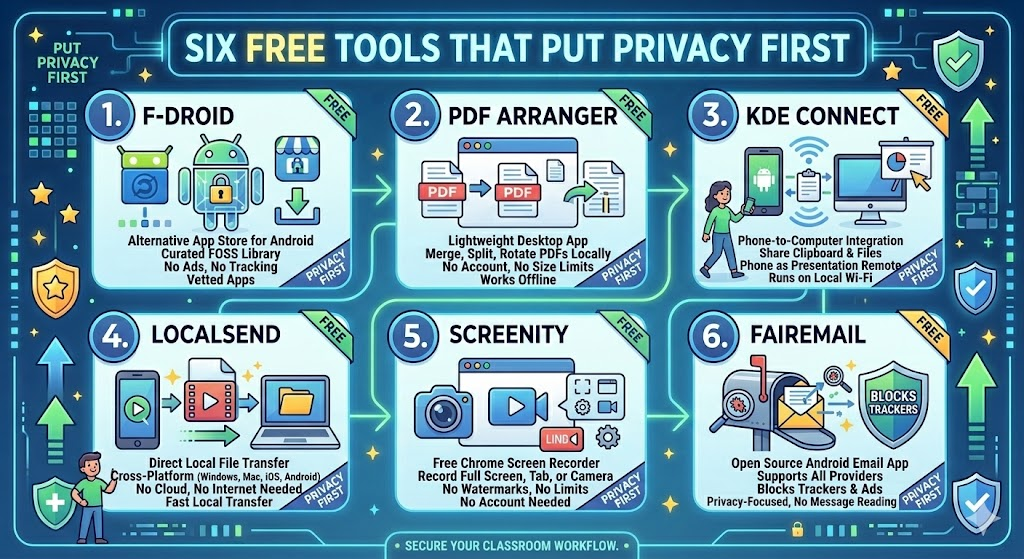
F-Droid is an alternative app store for Android devices. If you are an iPhone user, skip this tool. Think of it as a curated library of free and open source apps, with no ads, no tracking, and no purchase requirements.
Why does this matter? The Google Play Store hosts thousands of apps that collect data quietly in the background. F-Droid apps are vetted for that kind of behavior. If your school uses Android devices or you manage a classroom set of tablets, F-Droid gives you a cleaner source for apps like FairEmail (more on that below) and other tools you might not find through standard channels. For example, I needed an RSS reader. I could have paid for the RSS readers that allow me to subscribe to blogs and news sites. However, using F-Droid, I was able to try a series of free RSS readers until I found the one with the features I wanted.
Since I have an Android phone, I use F-Droid primarily as an installation source for apps I already trust. Think of it as the difference between downloading software from a developer’s own site versus a random file-sharing page.
Tool #2: PDF Arranger
PDF Arranger is a lightweight desktop app for Windows and Linux that lets you merge, split, rotate, crop, and rearrange pages in PDF files using a simple drag-and-drop interface. If you have had to work on a sensitive document in PDF, this tool will soon become your best friend.
This tool solves a problem every educator knows: you have a worksheet from one source, a rubric from another, and a reference page from a third. You need them combined into one document. Or, let’s say you have three sensitive documents that you need to combine into one, all without uploading sensitive, confidential information to a web service.
PDF Arranger handles all of it locally on your computer. No account is required, and there are no file size limits. No waiting for a web app to process your upload.
| Task | PDF Arranger | Typical Web Tool |
|---|---|---|
| Merge PDFs | Yes, locally | Yes, but files upload to a server |
| Split pages | Yes | Yes, with limits on free tier |
| Rearrange pages visually | Yes | Sometimes |
| Works offline | Yes | No |
| Cost | Free | Often freemium |
What’s more, if you are in a Chromebook environment, you can install the app on your device with Crostini. To do this, you have to enable the “Linux Development Environment” on your Chromebook. This creates a secure, isolated container where you can run GNU/Linux software. Since PDF Arranger is free, open source, you can safely handle sensitive documents on your Chromebook and then move them to your computer via LocalSend (more on this below) without a cloud intermediary.
Tool #3: KDE Connect
KDE Connect links your Android phone (or your Chromebook if it can run Android apps) to your Windows, Mac, or Linux computer over your local network. Once connected, you can share your clipboard between devices, send files back and forth, use your phone as a remote pointer for presentations, and receive phone notifications on your desktop.
For teachers, the presentation remote feature alone is worth the setup. Instead of standing at your computer to advance slides, you walk the room and tap your phone. KDE Connect works without Bluetooth. It runs over your school’s Wi-Fi network with no data leaving your building.
Tool #4: LocalSend
LocalSend does one thing: it sends files between nearby devices without using the cloud, an account, or an internet connection. You open the app on two devices connected to the same Wi-Fi network, select your recipient, and send.
Students on different devices, different operating systems, different ecosystems. LocalSend does not care. It works across Windows, Mac, Linux, Android, and iOS. Files transfer directly between devices at full speed. It also can be installed on Chromebooks capable of running Android apps.
I have used this when needing to send a video that was too large to email and too sensitive to upload to a shared drive. It took about twenty seconds.
Tool #5: Screenity
Screenity is a free Chrome extension for screen recording. It records your full screen, a specific tab, or your camera, and saves recordings directly to your computer or Google Drive.
No watermarks. No time limits. No account required to record, only to save to Drive. For quick tutorial videos, assignment walkthroughs, or flipped classroom content, Screenity covers the basics without the friction of a paid tool.
Tool #6: FairEmail
FairEmail is an open source Android email app focused on privacy. It supports all standard email providers, blocks trackers embedded in email messages, and gives you fine-grained control over what loads and what does not.
Most email apps read your messages to serve ads or improve their own AI features. FairEmail does not. You can install it through the Google Play Store or through F-Droid for a fully ad-free experience.
Quick Reference
| Tool | Platform | Best Use | Cost |
|---|---|---|---|
| F-Droid | Android | Install FOSS apps safely | Free |
| PDF Arranger | Windows, Linux | Merge and rearrange PDFs locally | Free |
| KDE Connect | Cross-platform | Phone-to-computer file and clipboard sharing | Free |
| LocalSend | Cross-platform | Send files locally without cloud | Free |
| Screenity | Chrome browser | Screen recording with no account | Free |
| FairEmail | Android | Privacy-focused email | Free |
None of these tools require a subscription or a cloud account. Each one does its job locally, on your own hardware, without asking for more access than it needs. Give them a try if they meet your needs.