

Ever needed a place for students or staff in a workshop to turn in their work, but couldn’t afford the cost of a bulletin board type product? Maybe you want the work saved in Google Drive rather than somewhere else, or the ability to approve or deny posting in advance? If so, maybe my free, vibe-coded solutions are for you. Paying for these often involves an expensive subscription.
One or two subscriptions are okay, but we are way past that in education. Don’t you wish you could save your school (or your bank account) money and solve a real problem while protecting student data? Vibe-coding makes it possible. In this blog entry, I share several solutions that address problems I’ve noticed in my time as a technology director that educators have had.
- ShareSpace: A four-file submission board you set up in about ten minutes, and the data lives in your own Google Drive.
- WonderWall: Use this as a moderated question wall where students or workshop participants can submit questions and
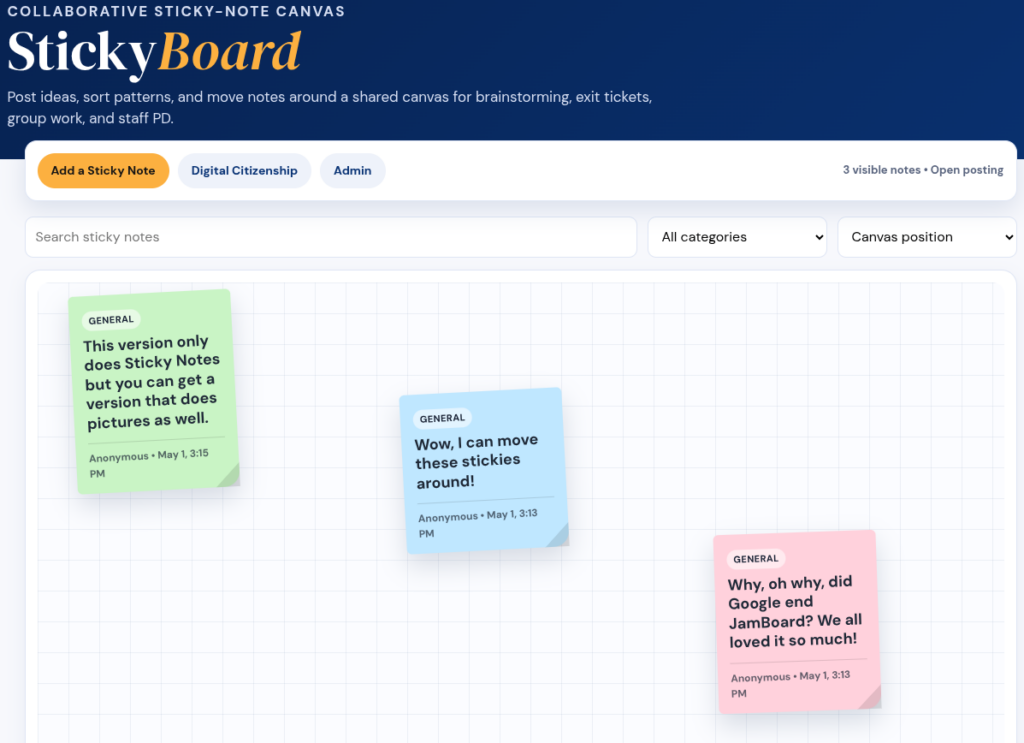
- StickyBoard: Drop multi-colored sticky notes on this board
- Bonus: Markdown Cleaner/Converter: Learning how to use Markdown? Working with Gen AI tools often involves converting information to and from markdown format. This simple tool is my own customization that also builds in a markdown cleaner with Find and Replace text tool.
This are several tools I’m sharing for K-16 educators who want to vibe code their own classroom utilities. Vibe coding means describing what you want to an AI and iterating until it works, no CS degree required. Of course, since you have all the files, you can feed it to your own Gen AI tool of choice and ask it to customize for your needs and situation.
Solution #1: ShareSpace: A Padlet Alternative You Own
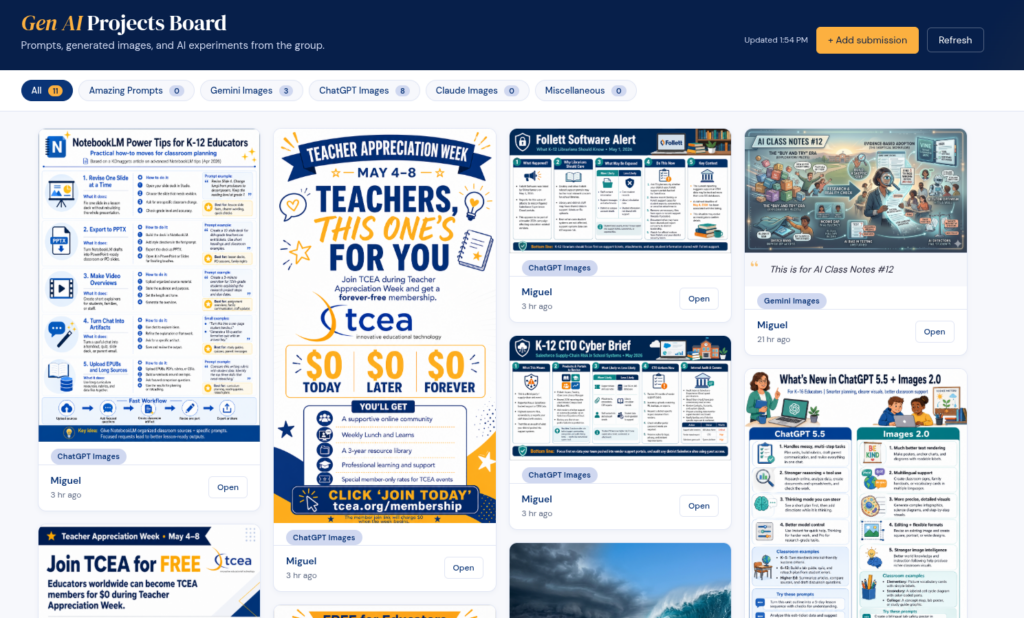
This is a solution that definitely would raise eyebrows. Imagine an online space that students can access with any device (e.g. Chromebook, smartphone, desktop/laptop) and upload a picture. See? I can see your eyebrows going up already. But if this solution is moderated, you can quickly manage and approve content. Since the data lives in Google Drive, you can easily remove it. To be honest, I see this working best for a professional development situation.
In the example above, you see one I created for online course (AI Essentials for Educators) that people can share what they make with Gen AI tools. Participants land on a clean upload page. They enter their name, pick a category, drop a file (any format, up to 25 MB), and add a short reflection.
Submissions appear on a public masonry-style board with category filter pills and a 60-second auto-refresh. Images render as thumbnails with a click-to-enlarge lightbox. PDFs show their first page. Videos and audio play inline. Office docs get a file card with an “Open” button. Text files render their content right on the board.
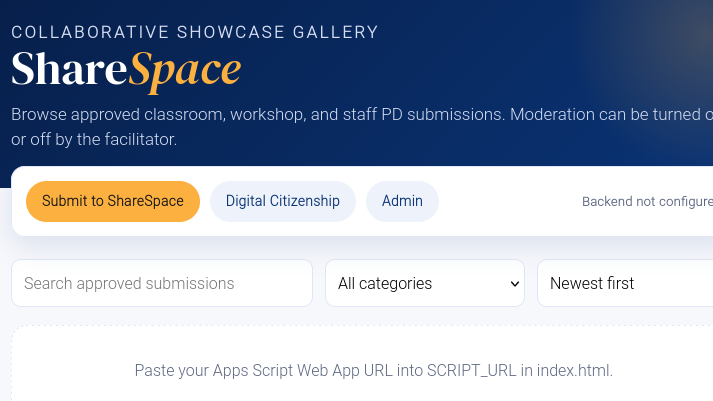
Note: The moderated version of ShareSpace
The admin page is passcode-protected and lets you edit reflections or delete entries. Deleting moves files to Drive trash (recoverable for 30 days), so you can fix mistakes without panic.
Behind the scenes, a single Google Apps Script handles uploads, organizes files into category subfolders, and logs everything to a Sheet. No server to maintain. No subscription. No vendor lock-in. Categories are configurable—modules, weeks, departments, themes, whatever fits your project. Copy the folder, change a few constants, and you have a fresh deployment for the next cohort.
Get ShareSpace Now
Grab the sharespace-demo.zip without moderation, open the SETUP.md inside, and you’ll have your own running in the time it takes to drink a coffee. Note that this version does not have moderation built into it, only the ability to delete or remove content via an admin page. If you want the one with moderation, you’ll need this version of sharespace-demo-moderated.zip.
Solution #2: WonderWall
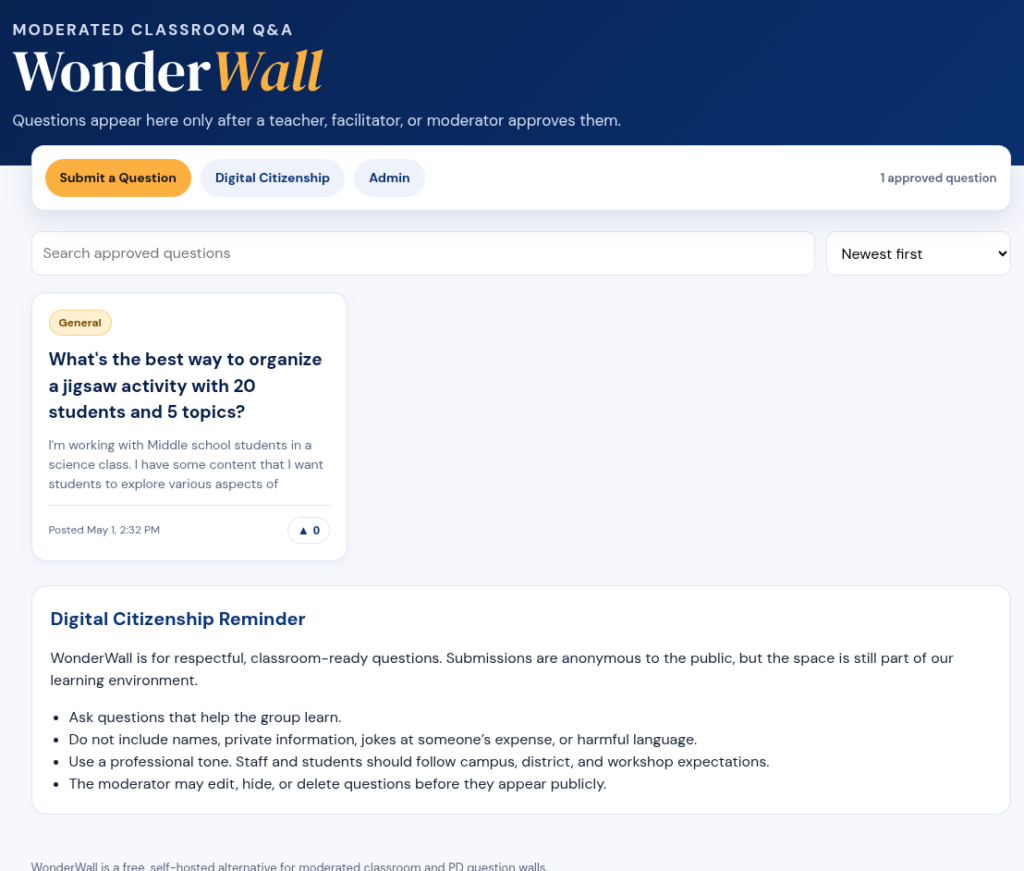
Wish you had a Slido style solution at no cost? WonderWall is a moderated question wall for classrooms, workshops, or staff PD. Students or attendees submit questions anonymously, you approve them before they appear publicly. This is what the moderation page looks like and requires a password to access it. You could keep this moderation page on your own computer and not post it on the web to safeguard it (the password protection is enough to stop most, but not a dedicated coder or Claude Mythos).
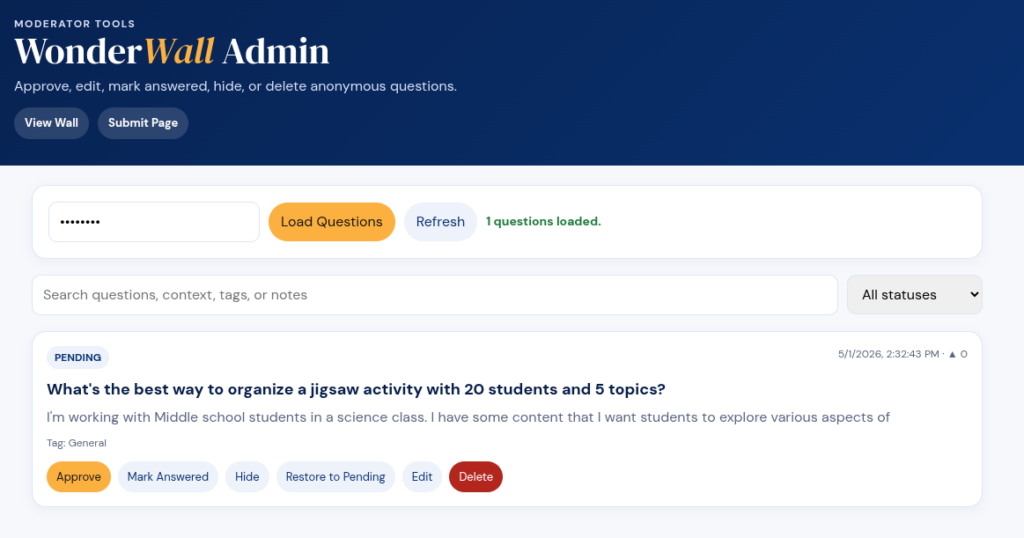
Think of it as a free alternative to Slido or Mentimeter Q&A.
Get WonderWall Now
Ready to get WonderWall? Find it online here.
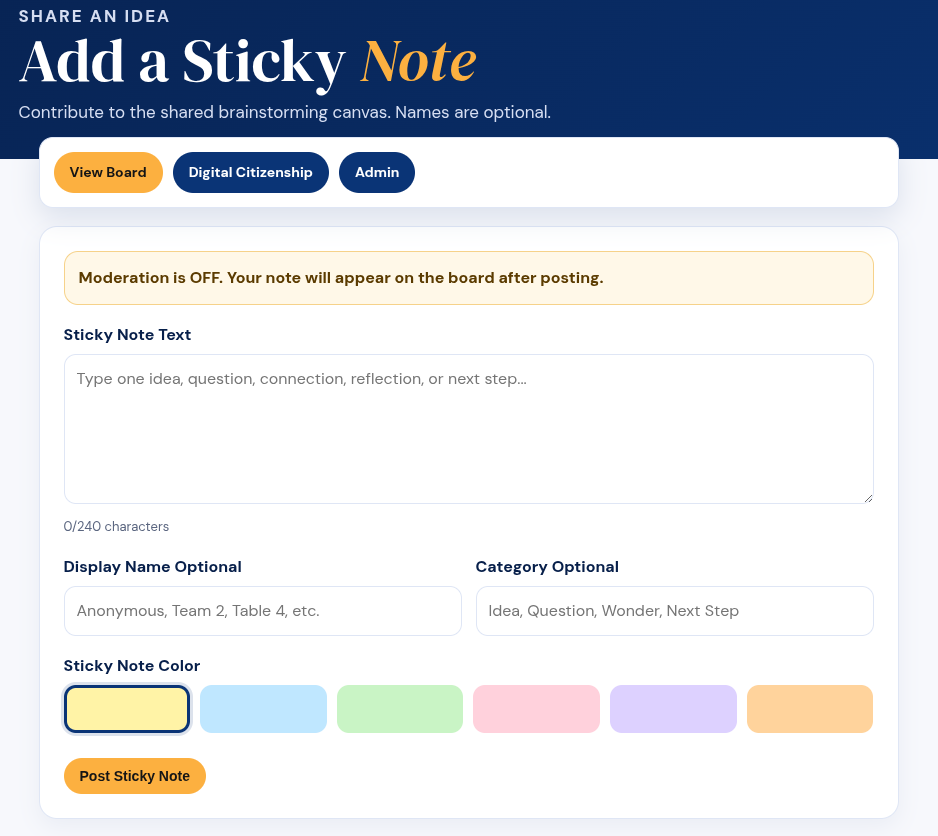
Solution #3: StickyBoard
You know, I don’t know why, but this particular vibe-coded StickyBoard solution blows my mind. Ok, I need a new expression. My sense of wonder has been increased. StickyBoard is a collaborative sticky-note canvas for brainstorming and group work. It’s meant to fill the hole left when you know who decided to “end” a solution all of us loved in late 2024. I never cared for FigJam or Lucidspark due to the cost.
Get StickyBoard Now
Grab stickyboard-demo.zip, open the SETUP.md inside. It won’t be long before you have this working on your own computer. Work with your technology department to host it on an internal server (intranet). The original StickyBoard shown above handled only sticky notes, but this version handles images/pictures, too.
But Wait, There’s A Bonus Solution!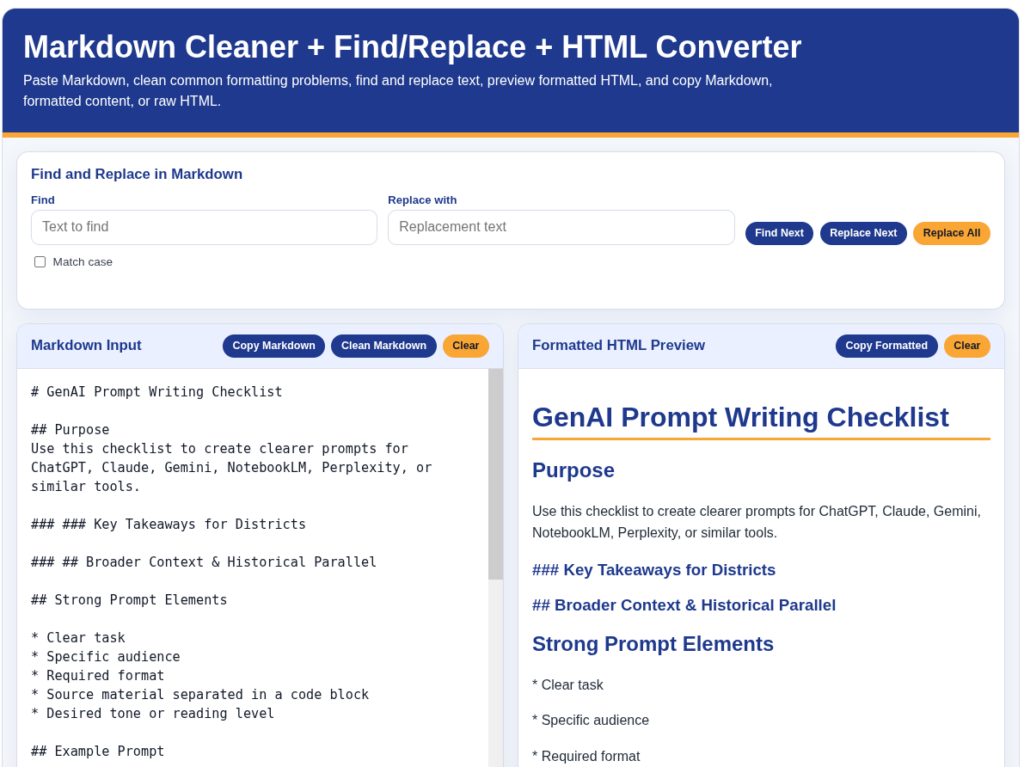
Solution #4: Markdown Cleaner and Converter Tool
This solution is one vibe-coded because I work with markdown files all the time (I write everything in markdown and save that in tools like Joplin Notes, StackEdit, and/or Obsidian). One of my pet peeves about the previous tool I relied on, MarkdownToHTML.com, which did a great job, is that it wouldn’t work well on my mobile phone. I also wanted a quick “Find and Replace text” and buttons that allowed me to copy and paste content (rather than try to select all, copy on a phone). My new, vibe-coded solution does it all. What’s more, I can add to it in time. It’s a single page and you can use it for free, too.
You can simply bookmark the page (https://go.mgpd.org/md) or get a copy then make your own adjustments to it.
My Next Project
“What’s the best solution for hosting my journalism students pictures?” That is a question that has arisen many times over the years. Each time, I did my best with available commercial solutions. Now, given a little more time, I might use Gen AI to vibe code:
ImageHouse: A place where journalism teachers (or anyone, really) can have students upload images and videos they take instead of relying on a paid solution or Google Photos, which raises safety concerns in some places.
What’s your next project going to be? Find my future projects online.