
GNU/Linux Favorite Programs (Updated 10/5/2010)
Having been a “long-time” UbuntuLinux user, I’ve become accustomed to a variety of applications. Many of these software programs are quickly becoming standard across the various platforms. However, there are a few that are particular to UbuntuLinux.
Special thanks to The Indexer!
This blog entry is a first draft of the list and part of my series on My Favorite Apps. So, here goes…
-
Add Medibuntu repository FIRST
sudo wget —output-document=/etc/apt/sources.list.d/medibuntu.list http://www.medibuntu.org/sources.list.d/$(lsb\_release -cs).list &&
sudo apt-get —quiet update && sudo apt-get —yes —quiet —allow-unauthenticated install medibuntu-keyring &&
sudo apt-get —quiet update -
sudo apt-get install w32codecs
-
Adobe Reader -
sudo aptitude install acroread acroread-fonts -
AdobeAir and TweetDeck
- wget http://airdownload.adobe.com/air/lin/download/latest/AdobeAIRInstaller.bin
- chmod +x ./AdobeAIRInstaller.bin
- sudo ./AdobeAIRInstaller.bin
- Install Tweetdeck
-
AntiVirus - Sometimes, you need to clean out Windows media that are infested. Here are some of the tools:
sudo aptitude install clamav clamtkMy favorites include A2Squared Anti-Malware (Windows, but installs and works on UbuntuLinux using WINE), Avast Home Edition for UbuntuLinux, AVG AntiVirus, ClamAV
-
Bleachbit - From their web site: BleachBit quickly frees disk space, removes hidden junk, and easily guards your privacy. Erase cache, delete cookies, clear Internet history, remove unused localizations, shred logs, and delete temporary files. Designed for Linux and Windows systems, it wipes clean 70 applications including Firefox, Internet Explorer, Flash, Google Chrome, Opera, Safari, Adobe Reader, APT, and more.
Beyond simply deleting files, BleachBit includes advanced features such as shredding files to prevent recovery, wiping free disk space to hide traces of files deleted by other applications, and vacuuming Firefox to make it faster.
-
Compression Software -
sudo aptitude install unace rar unrar zip unzip p7zip-full p7zip-rar sharutils uudeview mpack lha arj cabextract file-roller -
DVDRip - allows you to rip a DVD, handy for getting a digital copy on your computer of your daughter’s choir concert.
sudo apt-get install dvdrip
sudo aptitude install libdvdcss2 && sudo /usr/share/doc/libdvdread4/./install-css.sh -
Filezilla FTP Client - cross-platform file transfer protocol client that works.
sudo apt-get install filezilla -
Firefox -_
sudo aptitude install firefox_ -
Glipper Clipboard Manager -
sudo aptitude install glipper -
The GIMP -_
sudo add-apt-repository ppa:matthaeus123/mrw-gimp-svn && sudo aptitude update_ -
KGPG - an encryption tool for GPG/PGP. Great for encrypting content
sudo apt-get install kgpg -
DVD Libraries - Lets you do something with DVDs.
sudo apt-get install libdvdcss2 -
Mozilla Thunderbird
sudo apt-get install thunderbird -
MP3 to Ogg Converter - Convert MP3 files in bulk to OGG format
sudo apt-get install mp32ogg -
MSTCoreFonts - Get your favorite Windows fonts installed.
sudo apt-get install mstcorefonts -
Non-free-codecs
-
Sound Converter - a GUI sound converter program
sudo apt-get install soundconverter -
TrueCrypt - Encrypt entire drives or create encrypted drive containers to store confidential information that you can interact with on Mac and Windows, as well as GNU/Linux.
-
Restricted Extras
sudo apt-get install ubuntu-restricted-extras_sudo aptitude install non-free-codecs libxine1-ffmpeg gxine mencoder mpeg2dec vorbis-tools id3v2 mpg321 mpg123 libflac++6 ffmpeg libmp4v2-0 totem-mozilla icedax tagtool easytag id3tool lame nautilus-script-audio-convert libmad0 libjpeg-progs libmpcdec3 libquicktime1 flac faac faad sox ffmpeg2theora libmpeg2-4 uudeview flac libmpeg3-1 mpeg3-utils mpegdemux liba52-dev
sudo aptitude install gstreamer0.10-ffmpeg gstreamer0.10-fluendo-mp3 gstreamer0.10-gnonlin gstreamer0.10-pitfdll gstreamer0.10-sdl gstreamer0.10-plugins-bad-multiverse gstreamer0.10-schroedinger gstreamer0.10-plugins-ugly-multiverse totem-gstreamer
sudo aptitude install gstreamer-dbus-media-service gstreamer-tools ubuntu-restricted-extras
sudo aptitude install gsfonts gsfonts-x11 flashplugin-nonfree_ -
WINE - Allows you to run some Windows programs on your computer
sudo apt-get install wine playonlinux -
VLC Media Player -
sudo apt-get install vlc vlc-data vlc-dbg vlc-nox vlc-plugin-esd vlc-plugin-ggi vlc-plugin-jack vlc-plugin-pulse vlc-plugin-sdl vlc-plugin-svgalib
Some Useful Scripts:
1-Ubucleaner
Install Ubucleaner script to periodically clean out installation stuff you don’t need…usually a lot of left-over install packages that just take up space.
- Get it online -
wget http://www.opendesktop.org/CONTENT/content-files/71529-ubucleaner.sh - Give it rights -
sudo chmod +x 71529-ubucleaner.sh - Run it -
sudo ./71529-ubucleaner.sh
2-Nautilus Action - Wipe Files/Folders for Privacy
The purpose of this is to be able to right-click files or folders and WIPE them from your storage media. This is important when you’re dealing with confidential data that you want to ensure isn’t accessible if someone tries to recover data from your hard drive without your knowledge.
- Install Nautilus Actions - sudo apt-get install nautilus-actions
- Install Wipe - sudo apt-get install wipe
- Go to System:Preferences, then Nautilus Actions.
- Click ADD
- Follow the screenshots below…
Step 1 - Open Nautilus Action

Step 2 -Add a New Action and Customize it to Match the following two screenshots:

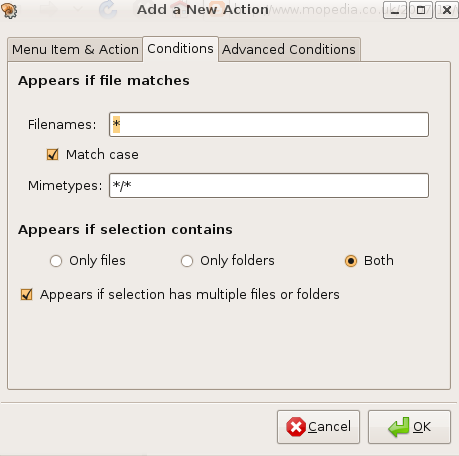
Click OK, then CLOSE out of Nautilus-Actions.
Right click on a file or folder that you want to WIPE, and you’ll see the WIPE option. Some suggest you do this after setting up WIPE at the command line.
nautilus -q
nautilus
press enter twice
I believe this quits, then restarts Nautilus so that changes take effect. Be warned that if you quit, the files on your Desktop will stop showing up until you reboot your computer.
 Subscribe to Around the Corner-MGuhlin.org
Everything posted on Miguel Guhlin’s blogs/wikis are his personal opinion and do not necessarily represent the views of his employer(s) or its clients. Read Full Disclosure