
Partition Table Diagram
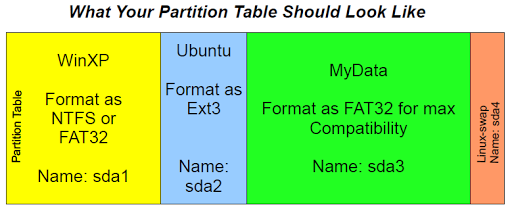
Yesterday, I had some fun sharing how to setup a partition table. As I spoke, I made some diagrams…above, you can find one of those. Below are some of the others things I shared. If you should notice anything wrong or inaccurate, please don’t hesitate to let me know!
UPDATE 11/16/2009: You may want to read this summary article on a variety of backup/restore and reimaging options available for different operating systems.
RECOMMENDATIONS
-
Install Windows XP FIRST
-
Install Ubuntu SECOND. Set the mount point as “/”
-
For your WinXP partition, allocate at least 50 gigs depending on how many (e.g.big) applications you need to install. If you plan to install lots of big programs (e.g. games), then this should be much bigger.
-
For Ubuntu, allocate 10gigs…even after installing my favorite Ubuntu programs, I haven’t exceeded 6 gigs.
-
For MyData, allocate as much as you can since this is where you will store your data.
EASY INSTALLATION
To ensure an easy installation, you are encouraged to put together the following tools…once you set these up, these will save you time.
TOOLS YOU NEED
-
3 USB flash drives, at least 1 gig each
-
Use your Windows and USB
-
Software Programs:
-Unetbootin – Use this to create Ubuntu and System Rescue bootable USB Flash Drives. You’ll need to download the ISO Files for Ubuntu and System Rescue
-WinFlash – Use this to create a Windows XP install USB Flash drive. -
CDs or ISO files:
-Windows XP SP3 or whatever version
-Ubuntu ISO (get it at http://ubuntu.org)
-System Rescue ISO (get it at http://www.sysresccd.org/Download )
TOOLS YOU CAN USE TO MAKE BACKUPS
Use these tools off the SystemRescue Bootable Flash drive to make backups:
-dd – Makes an exact copy of the whole drive.
-Partimage – Makes exact copies of a partition.
-FSArchiver – Compressed copy of the contents of one or more partitions.
 Subscribe to Around the Corner-MGuhlin.org
Everything posted on Miguel Guhlin’s blogs/wikis are his personal opinion and do not necessarily represent the views of his employer(s) or its clients. Read Full Disclosure