
#Tootorial - Importing #FollowingList Members for #Mastodon

Image Source: Educator Meta-List, https://github.com/nathanlesage/academics-on-mastodon
Want to import some of the many Following Lists you find? For example, like the EduTooter list that Doug Holton and I maintain? Then you are in the right place.
Note: Use these steps below for the EduTooters List (more info here)
Here’s my step by step:
Step 1 - Prepare the CSV file
You will be importing a CSV, or comma-separated values or comma-delimited file, into your Mastodon preferences. As you can see, I have some data (103 rows of data, or 103 people) in the EduTooters import file (get a copy of it):

What I want to do is import the entire list (called a “Following List”) into my Mastodon account AND NOT destroy my existing list of people I’m following.
To do that, I created another tab in the spreadsheet that looks like this:

Then, I exported this tab from my Google Sheet as a comma-delimited file:

It looks similar to this:

With that file created, I was now able to import the file into Mastodon web.
**Step 2 - Import File into Mastodon
**
To import the file, I simply went to my Mastodon interface:

As you can see, you can select from a drop down. Be sure to select FOLLOWING LIST, then BROWSE to the CSV file on your device. Make sure to select MERGE so that you don’t delete your existing list of people you are following.
Then, UPLOAD.
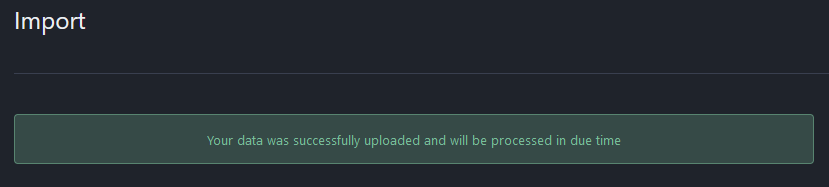
You will see a message that looks like this in the green box (it disappears after a bit):
Step 3 - Verify Import Success
After that, you wait for whatever “processed in due time” means. It wasn’t too long. I went to my list of people I am following (click on Profile, then following). The link will look like this one but with your info displayed:
Here’s one of the folks I imported:

Give it a try! I also made a video tutorial of the process.
Everything posted on Miguel Guhlin’s blogs/wikis are his personal opinion and do not necessarily represent the views of his employer(s) or its clients. Read Full Disclosure