
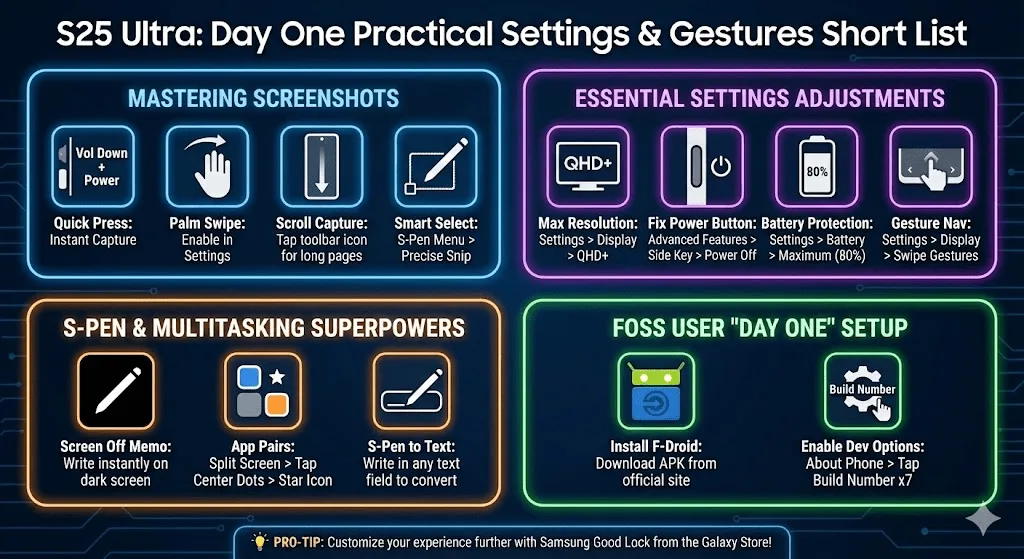
I asked for a handy list of things to know how to do on Samsung. I imagined screenshots (I always forget), and got this list instead:
Read others in the Android series.
Mastering Screenshots
Samsung offers more ways to capture your screen than iOS.
- The “Quick Press”: Briefly press the Side Button + Volume Down simultaneously. Note: Do not hold them, or you will trigger the Power Menu.
- Palm Swipe: Swipe the edge of your hand across the screen (left-to-right or right-to-left). Enable this in Settings > Advanced Features > Motions and Gestures.
- Scroll Capture: After taking a screenshot, a toolbar appears at the bottom. Tap the double-arrow icon to scroll down and capture a long webpage or thread.
- Smart Select (S-Pen): Pull out the S-Pen, tap Smart Select from the Air Command menu, and draw a box around exactly what you want to snip.
2. Essential Settings Adjustments
Samsung often ships with “safe” defaults that don’t utilize the Ultra’s full power.
- Max Out Resolution: By default, the screen is set to FHD+. Go to Settings > Display > Screen Resolution and switch to QHD+ for maximum sharpness.
- Fix the Power Button: Out of the box, long-pressing the side button triggers Bixby/Gemini. To get your power menu back: Settings > Advanced Features > Side Button > Long press > Power off menu.
- Battery Protection: To preserve your battery health over years of use, go to Settings > Battery > Battery Protection. The “Basic” or “Adaptive” modes are great, but “Maximum” caps your charge at 80%.
- Gesture Navigation: If you prefer iPhone-style swipes over the three buttons at the bottom: Settings > Display > Navigation Bar > Swipe Gestures.
3. S-Pen & Multitasking
- Screen Off Memo: You don’t need to unlock your phone to take a note. Just pull out the S-Pen while the screen is black and start writing. Tap “Save” to send it to Samsung Notes.
- App Pairs: If you frequently use two apps together (e.g., Joplin and a browser), open them in Split Screen, tap the three dots in the center divider, and tap the Star icon. This saves them as a pair on your Edge Panel for one-tap access.
- S-Pen to Text: You can write directly into any search bar or text field with the S-Pen, and it will convert to typed text instantly. Enable this in Settings > Advanced Features > S Pen > S Pen to text.
4. Pro-Tips for the FOSS User
- Install F-Droid First: Since you prefer open-source, download the F-Droid APK from their official site. It is your gateway to the best tracker-free apps like AntennaPod and KOReader.
- Developer Options: Go to Settings > About Phone > Software Information and tap Build Number 7 times. This unlocks “Developer Options,” where you can enable USB Debugging (required for the Scrcpy mirroring we discussed).