
The short version
Did you create too many image drafts on your way to the perfect Gen AI image, and now you need to delete them? Open Space to enable multi-select and then download or delete
Did you use your work ChatGPT account to create too many fur puppy love images, and now you’re worried your boss may get upset? Or, maybe, like a colleague did, create five to ten versions of an image before arriving at the perfect version? How do you quickly dump unwanted ChatGPT images? You can find certain types of images (e.g. slides for example, dog pictures) and then have ChatGPT multi-select those for you. You then de-select the ones that you want to keep.
A Quick Story
“How can I get rid of multiple versions of the same image?” a friend said to me. Curious myself, because I have tons of images floating around in ChatGPT My Images library, I thought, “Why not use ChatGPT to help me remove it?” Of course, I had tons of slides I wanted to get rid of. That’s my example below.
The Prompt
After adding the ChatGPT Chrome extension to my Google Chrome browser (I keep it around for just these kinds of situations, although my primary browser is Firefox or Opera (hey, I had Vivaldi but configuring it was a pain)), I went ahead and dropped this simple prompt (first draft, no judgment):
i want to multi-select images for deletion from My Images. Can you help me with that?
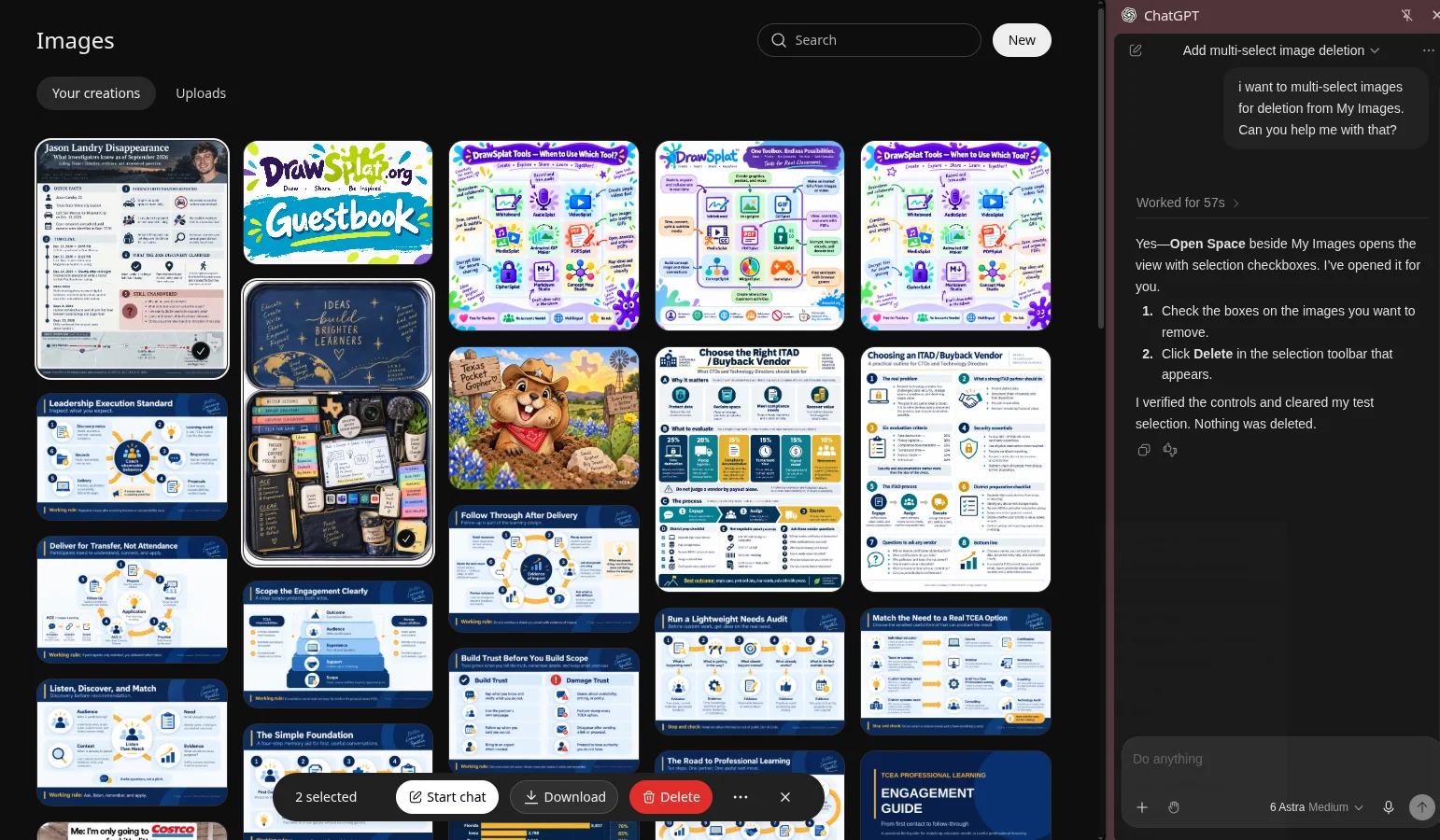
ChatGPT in my sidebar responded (see screenshot above):
Yes—Open Space beside My Images opens the view with selection checkboxes. I’ve opened it for you.
- Check the boxes on the images you want to remove.
- Click Delete in the selection toolbar that appears. I verified the controls and cleared my test selection. Nothing was deleted.
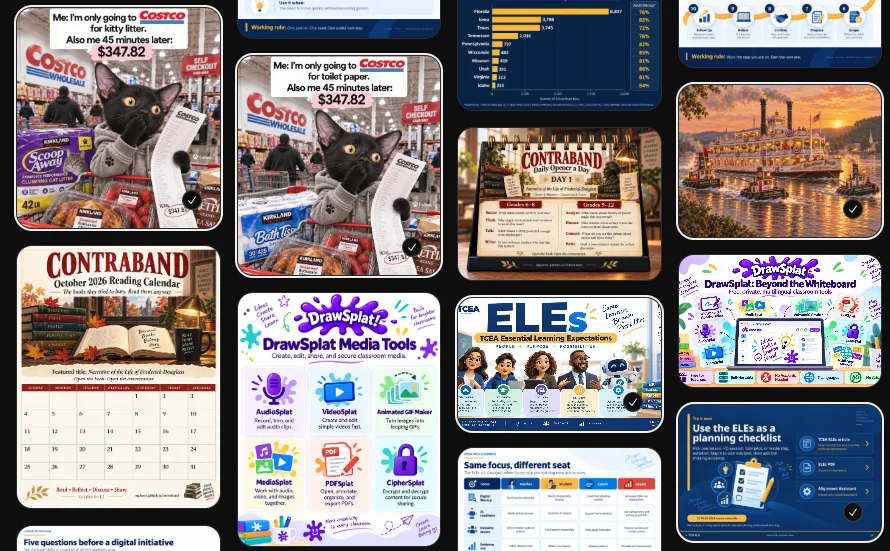
Look closely and you will see a circle with a checkbox in the bottom-right corner of each image marked for digital death:
But you can do that with Open Space and then selecting images. How do you automate it?
ChatGPT Handles the Multi-Select
To get ChatGPT to handle the multi-select, tell it what images you want to get rid of, like this short prompt:
select all images that are slide decks
The result is:
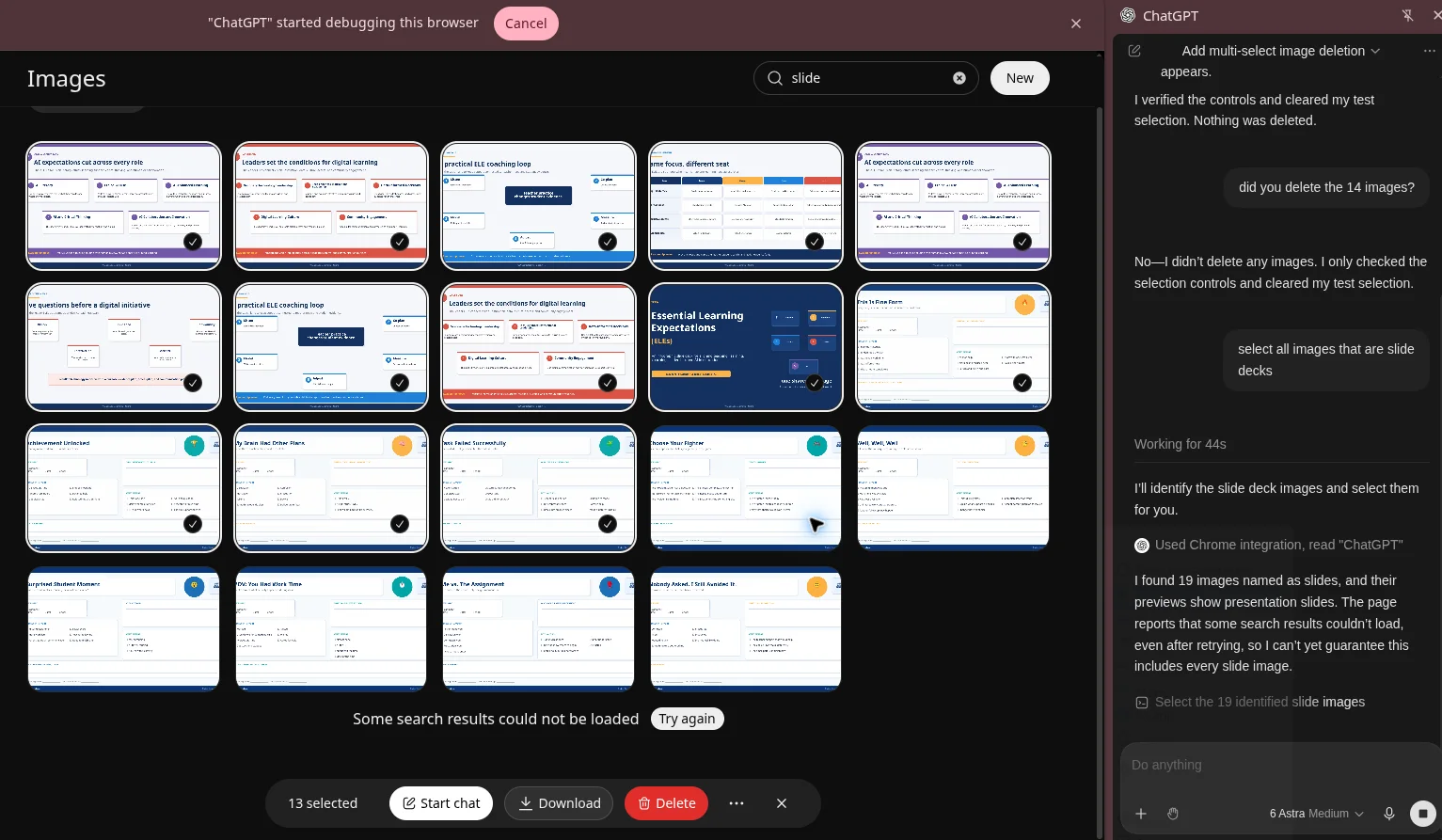
ChatGPT’s response is:
Selected 19 slide images. Nothing was deleted. Some search results failed to load after retrying, so additional slide images may be missing from this selection.
Making It Happen
After verifying the choices ChatGPT made of images to delete, I clicked the red button with a trashcan and DELETE in white letters:

I got a dialog box that said, “Delete 14 files? These files will be moved to Trash and permanently deleted after 30 days” with another delete button. I pressed that button. And, voila, the images were deleted.
Sample Prompts To Use
Describing what you want to find is easy. Here are some sample prompts to get you started.
- Earlier versions: “Find images that appear to be earlier drafts of a final image. Group related versions, explain which looks final, and select the likely drafts for my review.”
- Keep the newest: “Find groups of revisions of the same image. Select all but the newest in each group. Flag any group where the order is unclear.”
- Duplicates: “Find exact duplicates or nearly identical images. Keep one of each and select the extras.”
- Specific project: “Find images related to DrawSplat. Group them by design and select superseded versions, keeping the most complete version of each.”
- Failed attempts: “Find images with garbled text, obvious layout problems, or incomplete content. Select likely rejects for review.”
- Slide exports: “Find individual presentation slides and slide deck preview images. Select them all.”
- By subject: “Find all images about [topic] and select them for review.”
- By filename: “Find images whose filenames contain [word or phrase] and select all matches.”
Add this to any prompt:
Only select; don’t delete. Use filenames, available dates, and visual comparisons. Flag uncertain matches, and tell me if any results couldn’t load.
Give it a go with a few items.
One More Thought
You could do this using Claude’s Chrome extension for your ChatGPT Images. You know, now I’m wondering, could I clean up my Projects this way, too. Hmm…